Attribute types
The attribute types available and when to use each.
Every column in a data object is an attribute, and each attribute has a type. The type decides what a record can store in that field, how the value is displayed, and how you can filter, sort and import it. Choosing the right type up front keeps your data clean and your views useful.
Where types are chosen
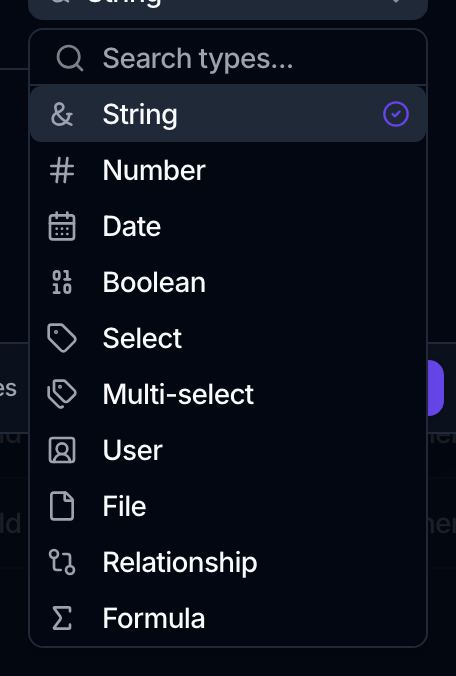
You pick a type when you add an attribute. From the Data area, open Manage, choose a data object, open its Attributes tab, then select Add Attribute. In the New Attribute form, the Type field opens a searchable list. See Create a data object for the full walkthrough.
Add several attributes in a row
To build out a schema quickly, keep the create dialog open between attributes. In the New Attribute form, turn on the Create other attributes toggle before you click Create. The dialog stays open and resets for the next attribute, and each one you add appears in a Created attributes list beside the form. Turn the toggle off, or close the dialog, when you're done.
Types you can add
| Type | Use it for |
|---|---|
| String | Free text such as names, notes, emails or URLs. |
| Number | Numeric values you want to compare or aggregate. |
| Date | A calendar date with no time component. |
| Boolean | A true or false flag. |
| Select | One value from a set you define. |
| Multi-select | Any number of values from a set you define. |
| User | One or more members of the workspace. |
| File | A reference to an uploaded file. |
| Relationship | A link to records in another data object. |
| Formula | A value computed from other attributes. |
String, Number, Date, Boolean and User need no extra setup: pick the type and create the attribute. The rest carry their own configuration, covered below.
Booleans
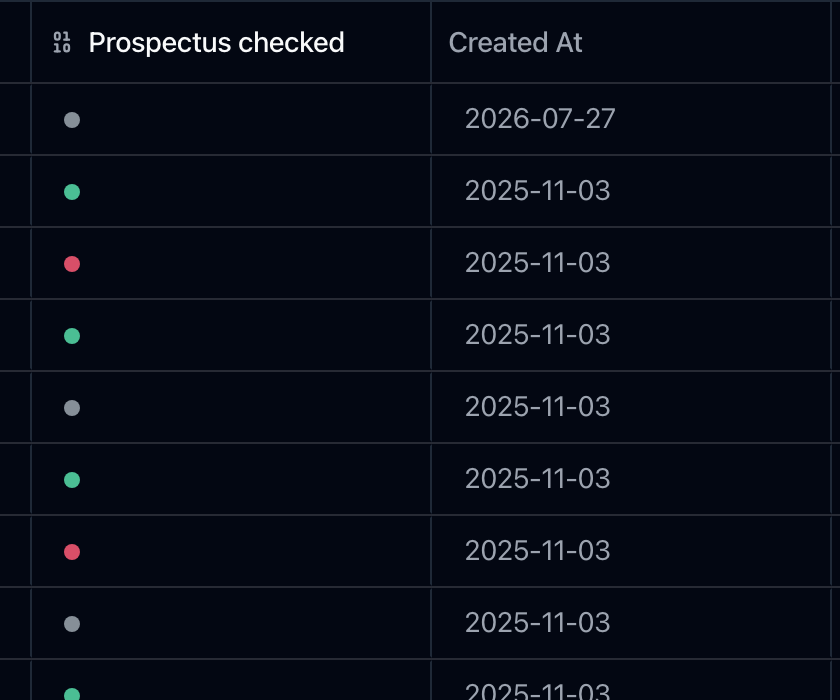
A boolean reads as a colored bullet rather than a word, which makes a column of them scannable at a glance. There are three states, not two: true, false, and none for a record that has no answer yet. Before, an empty boolean was drawn as false, so "we have not checked" and "we checked and it is not" looked identical.
Each state's color is configurable, on the attribute from its ⋮ menu, or as a workspace default. The bullet carries its state name for screen readers and on hover, because color on its own is not a readable value. While you are editing a cell you get a Yes / No / None picker instead of the bullet, since there you are choosing the value rather than scanning it.
Select and Multi-select
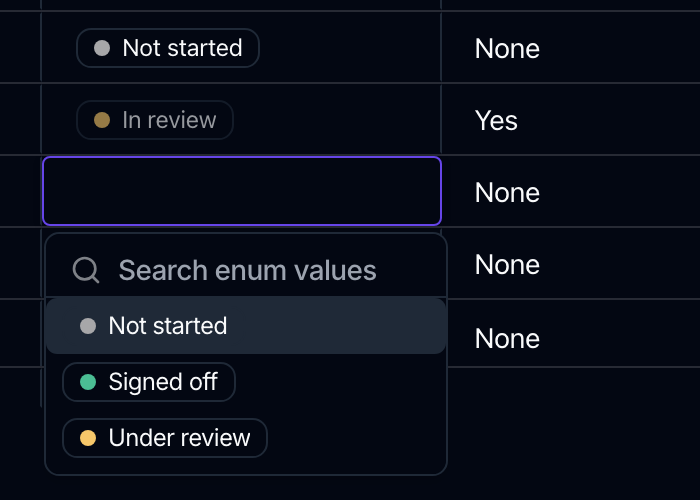
Some columns should not accept free text. A Status, a Region, a Strategy has a known set of answers, and letting people type them means three spellings of the same thing by the end of the quarter. Select holds one value from a set you define; Multi-select holds any number of them.
Define the values when you create the field
- Set the attribute's Type to Select or Multi-select.
- A Configure Options section appears. It tells you which kind you picked: Records can hold one of these values, or Records can hold any number of these values.
- Type the first value in the Option name box and pick a color for it.
- Click Add option for each further value.
- Create the attribute.
A field needs at least one option, so the last remaining row cannot be removed. Colors are worth spending a moment on: they are what makes the column scannable once it is full of records, and they carry through to the record grid, the task side panel and canvas widgets.
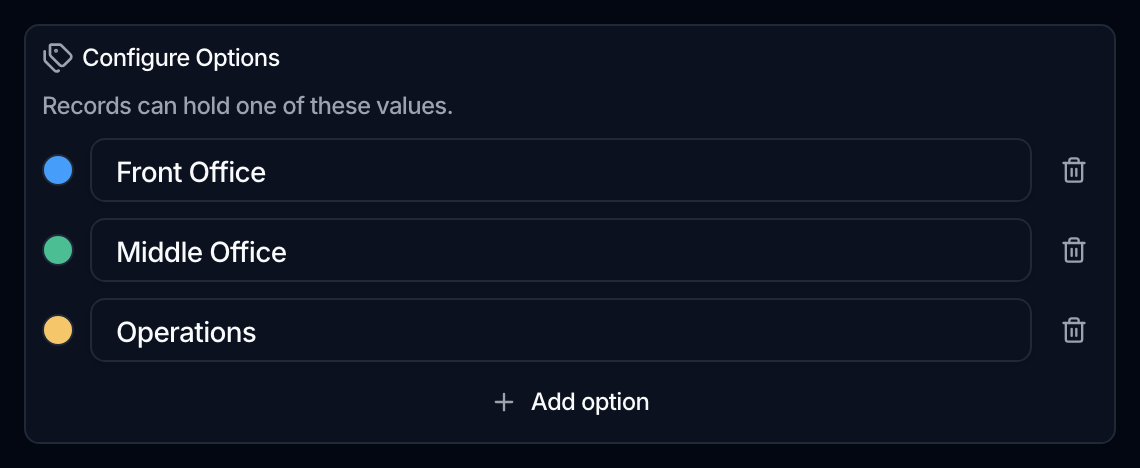
Every field owns its own set of values. Two Select fields in the same workspace never share options, so a Status on one object and a Status on another can mean completely different things without interfering.
Manage the values afterwards
Open the attribute from the Attributes tab and the same Configure Options section lists its current values. Editing here works differently from the rest of the dialog: each row is saved on its own, as you make the change, rather than when you save the attribute. An option is a record in its own right, not part of the column definition.
- Rename a value by typing in its row. The change commits when you click away.
- Recolor it from its color picker.
- Add a value with Add option. It arrives named New option, ready to rename.
- Remove a value with its remove control.
Renaming a value updates it everywhere it is already used, since the records point at the value rather than holding a copy of its name.
A value in use is retired, not deleted
Removing a value that no record uses deletes it. Removing one that records still hold retires it instead. Two things follow, and both are deliberate:
- The records keep their value. The column still reads correctly; the chips are simply drawn dimmed, so a retired value is visible as one at a glance.
- Nobody can choose it again. It leaves the picker, so the value stops spreading while you decide what to do with the records that have it.
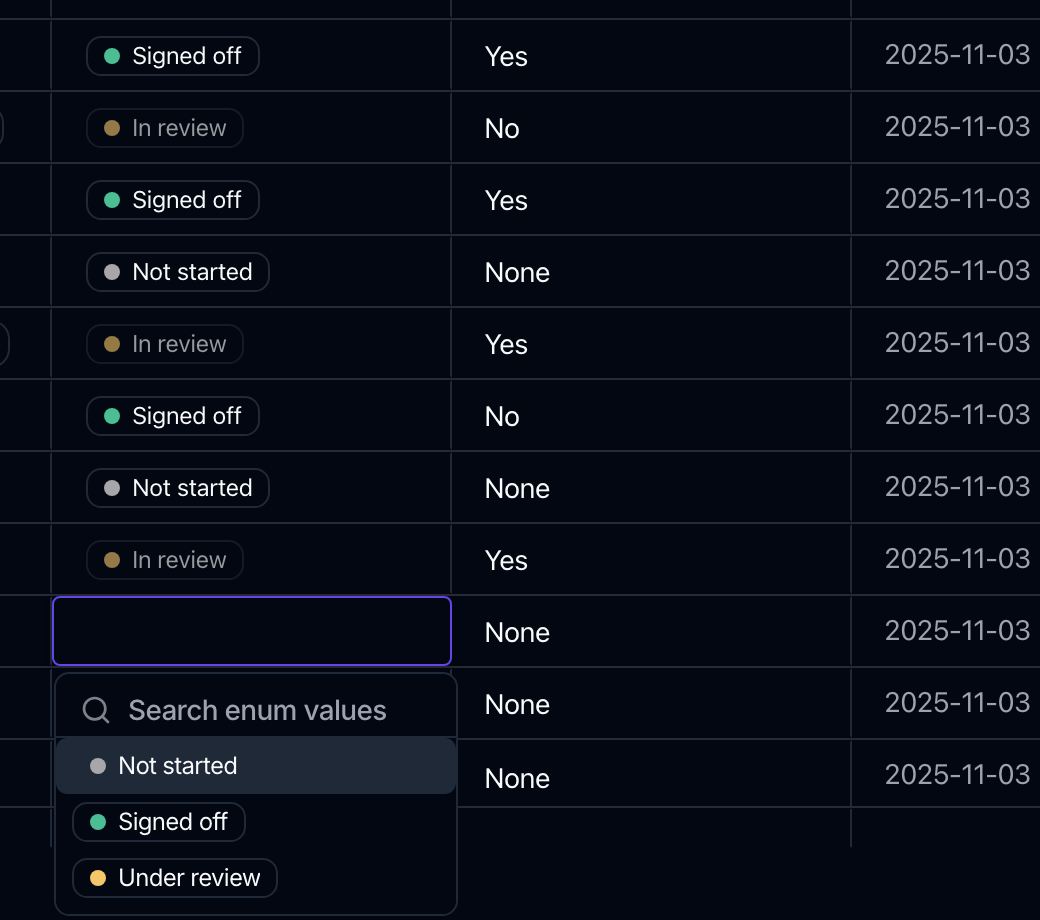
A retired value keeps its name. Add a new value with the same name as a retired one and the rename silently reverts, which looks like a bug and is not: the name is taken. Give the replacement a different name, or find the records still holding the old value and move them off it first.
Filling the column
- By hand, in the grid or the record form: the picker lists the values with their colors, and the ones you have already chosen sit at the top.
- By import: a CSV can fill these columns, and values are matched by name. You do not need to know any ids.
- From a workflow, with Save records, the same way.
An imported value whose name matches nothing in the set is reported as an error on that cell, not quietly added as a new option. That is deliberate: a typo in a delivery should not silently extend your value set. Fix the file, or add the value to the field first, then import again.
User
A User attribute holds one or more members of the workspace. It needs no configuration: the set of values is the membership, so the field is ready as soon as you create it, and it keeps up as people join and leave.
Like the option types, a user column is filled by picking from a list rather than typing, and an import matches members by name.
Relationships
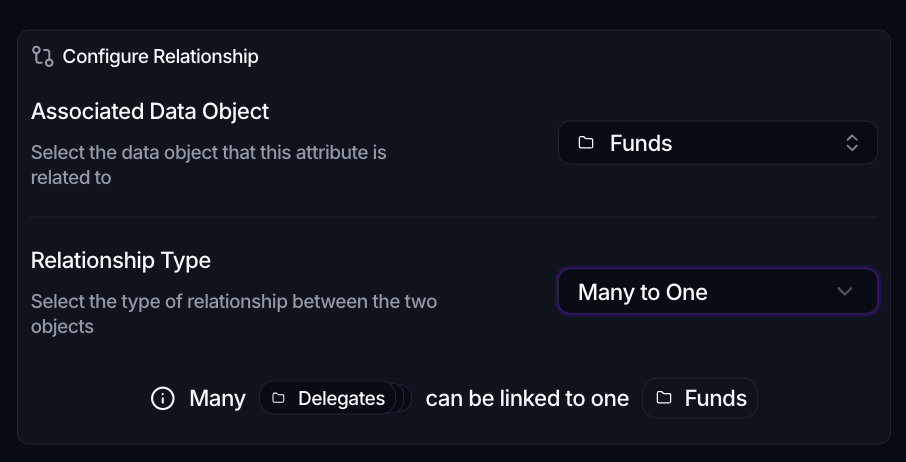
Choose Relationship and a Configure Relationship section appears with two choices:
- Associated Data Object: the object this attribute links to (any object except this one).
- Relationship Type: One to One, Many to One, or Many to Many. A one-line summary under the field spells out the cardinality you picked, for example "Many orders can be linked to one counterparty".
You don't pick which field of the linked object to show here. A linked record appears as a chip labelled by the target object's own Reference Display setting (see Configure the object). A chip too long for its column is clipped, and hovering it reveals the whole label. Deleting a linked record does not delete the records that point at it; it simply detaches the link.
Set the target object's Reference Display before you rely on a relationship column. Until you do, a linked record has no name to show and falls back to its internal id, which turns a useful column into a wall of identifiers. It is one setting on the object, and it fixes the column everywhere the relationship is read.
Formulas
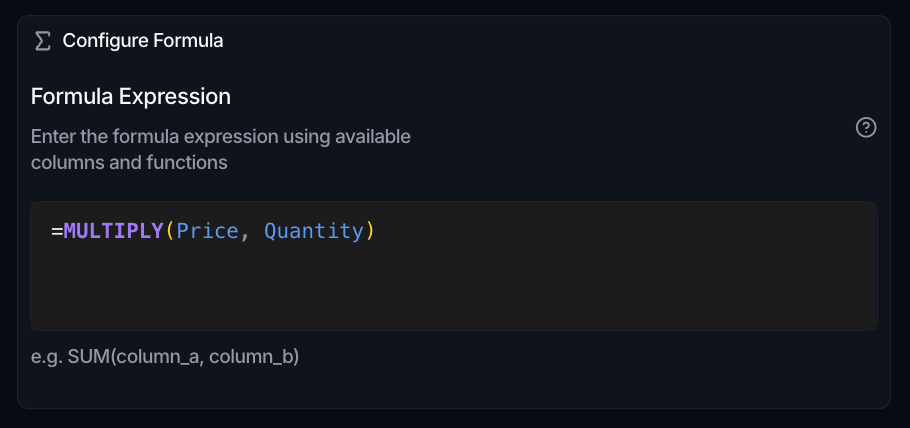
Choose Formula and a Configure Formula section gives you an expression editor. A formula is computed automatically for every record, so there is nothing to type per row.
- Reference other attributes by their name, and combine them with functions and the operators
+,-,*,/(and the comparisons>,<,>=,<=,=,!=). - The functions available are SUM, SUBTRACT, MULTIPLY, DIVIDE, AVERAGE, ABS, POWER, SUMLIST, CONCAT, UPPER, LOWER, and IF. A help icon next to the editor lists each with its signature.
- For example,
SUM(quantity, adjustment)orIF(status = "closed", 1, 0).
When a formula returns a number, you can format how it displays (see below). Formulas have no validators, since their value is derived rather than entered.
Files
A File attribute stores a reference to a file uploaded to the workspace; you attach the actual file per record. There is no separate single-versus-multiple setting. If you want to constrain what can be attached, add validators (below) for a Max size (MB) or a list of Allowed types such as pdf,jpg.
Format how a number displays
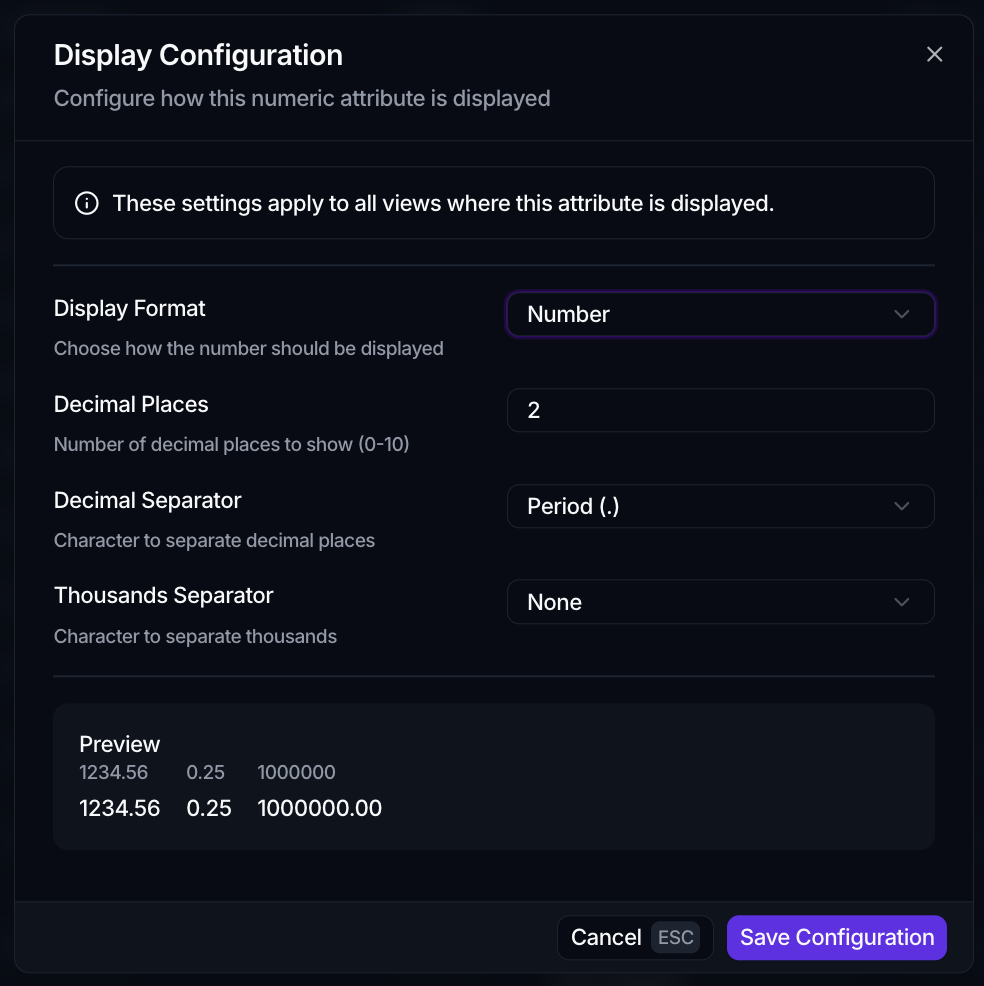
Numbers keep their stored value but can be formatted for display. On the Attributes tab, open a number attribute's ⋮ menu and choose Display Configuration:
- Display Format: Number, Percentage, or Custom.
- Decimal Places, and the Decimal Separator and Thousands Separator to use.
- With Custom, a Multiplier, a Prefix (for example
$), and a Suffix (for example%). This is how you present currencies or units; there is no dedicated currency type.
Formatting applies everywhere the attribute is shown, and that now includes canvas widgets: a chart's axis ticks, its on-chart labels and its tooltips, and a KPI's value all use the attribute's own configuration rather than the workspace default. See Chart and KPI.
The same option is available for formulas that return a number.
Validators and uniqueness
Attributes don't have a "required" or "unique" checkbox. Instead:
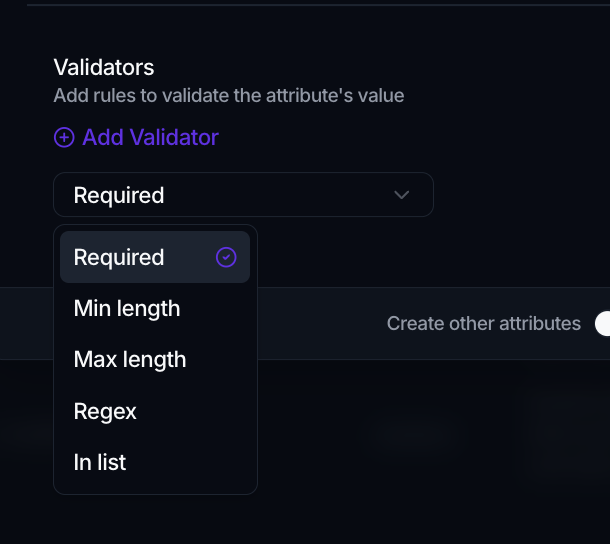
- Validators are rules you add to an attribute (under Validators, with Add Validator). Required is one; the rest depend on the type, for example Min length / Max length / Regex / In list for text, Min value / Max value / Integer only for numbers, Past only / Future only for dates, Must be true / Must be false for booleans, and Max size / Allowed types for files.
- Uniqueness is set on the object's Constraints tab, not as a validator. A constraint on one attribute makes that column unique; a constraint on several makes the combination unique. See Configure the object.
Fields on Tasks and Files
Tasks and Files are data objects too, and you can add your own attributes to them from Settings. The types on offer there are narrower, and the fields Spark ships with are locked. See Task fields and File fields.
Additional types you may see
Some types are created by the system or by templates rather than added by hand. You will encounter them on existing objects and in templates:
- Datetime stores a date together with a time.
- Status and Priority back the workflow-style option fields on Tasks.
- File labels tags files with reusable labels.
Select, Multi-select and User used to be in this list. They are now yours to create on any object, as above.
What this means for import
When you bring records in from a CSV, these types map directly: String, Number, Date, Datetime, Boolean, Select, Multi-select and User. The last three are matched by name, so a file can say EMEA or a member's name rather than an id.
Relationship, File and Formula attributes are populated through links or computed automatically, so they are skipped during import. See Add, edit & import records.