Task fields
Extend Tasks with your own fields, and see them wherever tasks are listed, edited, filtered and charted.
Tasks are a data object like any other, which means you can extend them. If your process needs a Review deadline on every task or a Desk that owns it, you add it as a field instead of squeezing it into a label or a description. The field then shows up wherever tasks appear: as a column, in the properties panel, in filters and sorts, and as a series on a canvas.
The fields Spark ships with are a different matter. They are the schema the application itself reads and writes, so they are locked.
Open the field settings
- In the left sidebar, open the Settings tab.
- Under Features, select Task.
The Tasks fields page splits into two sections:
- Custom, the fields you added. Open by default, with a count and a New button.
- Standard fields, the ones Spark provides. Folded away and read-only, with the note Provided by Spark. They can be displayed and filtered, but not renamed or archived.
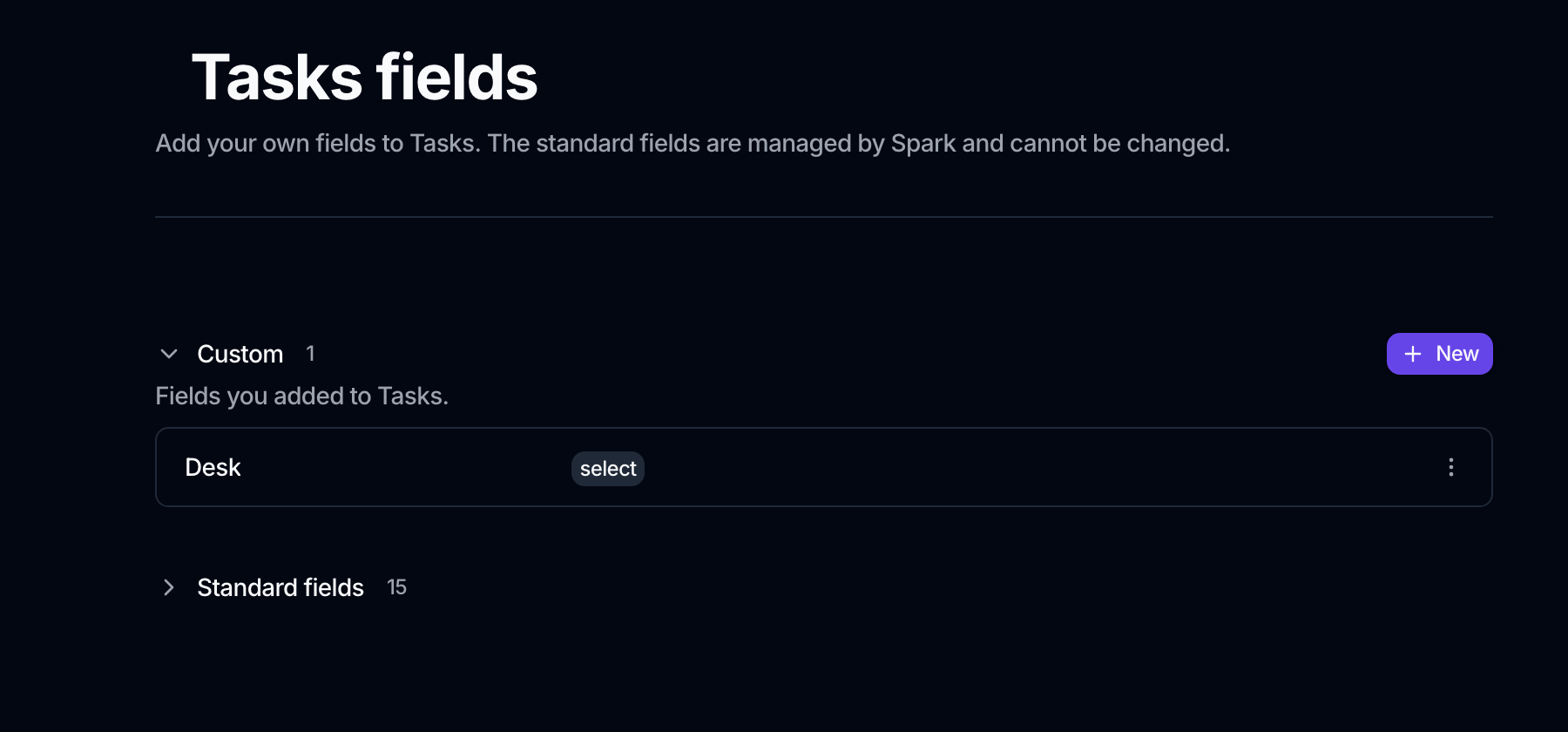
Standard fields cannot be renamed, retyped or archived, and that is enforced by the API rather than only hidden in the interface. A task's Status will always mean what the rest of Spark expects it to mean.
Add a field
- In the Custom section, click New.
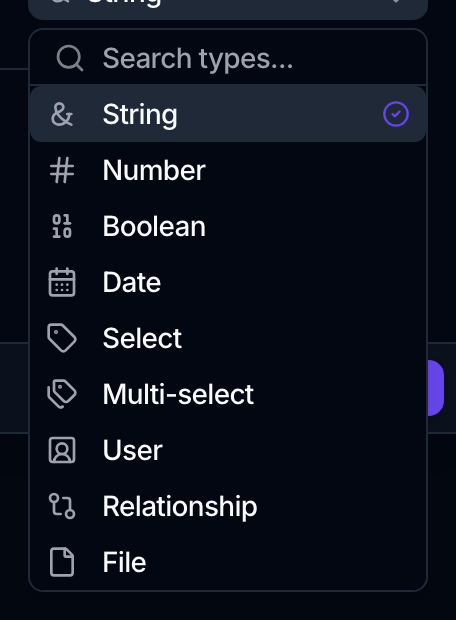
- Give the field a Name and pick its Type.
- Configure the type if it needs it, for example the linked object on a relationship, or the values on a select.
- Click Create.
The types available here are narrower than on your own data objects: String, Number, Boolean, Date, Select, Multi-select, User, Relationship and File. There is no Formula type, and status, priority and labels are already standard fields. For what each type stores, see Attribute types.
A new field lands in the default task view straight away, so it is available in the column picker, filters and sorts without any further step.
Edit, format, archive and restore
Each custom field has a ⋮ menu:
- Edit changes its name and description. The type is locked once the field exists, the same rule as anywhere else in Spark.
- Display configuration formats a number field: decimals, separators, a prefix or a suffix. See Format how a number displays.
- Archive hides the field everywhere it appears. The confirmation says it plainly: The field is hidden everywhere it appears. Its values are kept and come back if you restore it.
- Restore brings an archived field back. Archived fields carry an Archived badge and sort below the live ones.
Where a custom field appears
Once a field exists, it is available on every surface that reads tasks:
| Surface | How it shows up |
|---|---|
| The Tasks table | As a column you can add per view from Display, and drag into position |
| A task's detail page | As a row in the Properties side panel, with the editor its type calls for |
| Filter and Sort | As an attribute to filter or sort on, like any standard field |
| Canvas table, chart and KPI widgets | As a column or a series, since Tasks are a selectable data source |
| Workflows | As a field a Create Task or Save Record step can write |
Each saved view picks its own columns, so the field being available does not mean every view suddenly shows it. See Task views.
Attach a file to a task
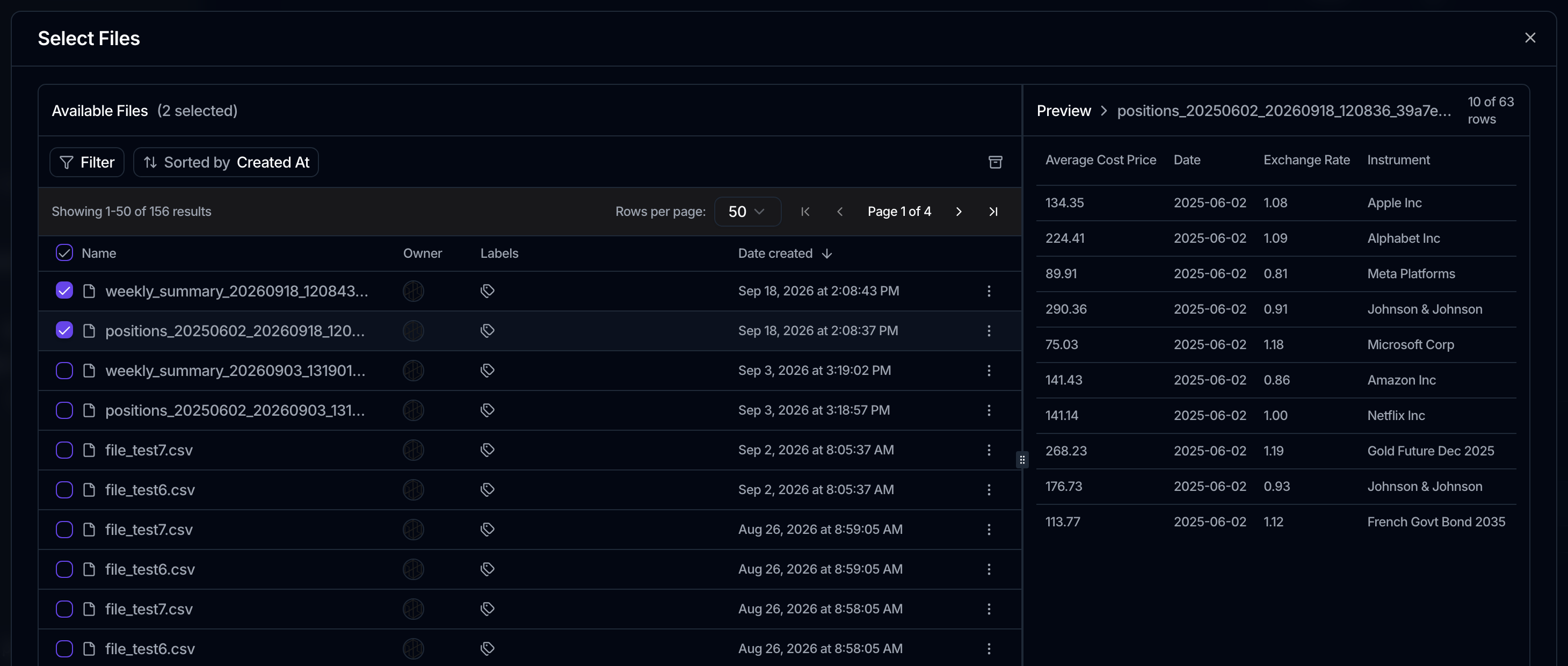
A File field on a task holds references to files already in the workspace. Open the field in the task's Properties panel and a file browser opens: search the workspace, preview or download a file to check you have the right one, tick the ones you want, and confirm. Unchecking everything clears the field.
This is a link, not a copy. The file stays on the Files page, keeps its labels, and remains available to previews and workflows. See Organize files.