Merge with other data
Add columns from a second data object to a view, through a relationship you already have or a condition you write.
A view is a view of one data object. That used to mean any question spanning two objects left the app: a workflow writing a third, flattened object, or two exports joined in a spreadsheet.
Merge answers those questions in the view itself. It borrows columns from a second object and shows them beside your own, without copying any data and without changing a single record.
Two promises, before anything else
These are worth reading before you use it, because they are what make it safe to try:
- Your row count never changes. Merging only ever adds columns. If a row would find several matches, Spark stops and asks you which one to show rather than quietly turning one row into three.
- Borrowed columns are read-only. They belong to another object, so nothing in the view will write to them. The dialog says it plainly next to the button: This only shapes the view. Your data is not changed.
Bring in an object
- Open the data object and the view you want to extend.
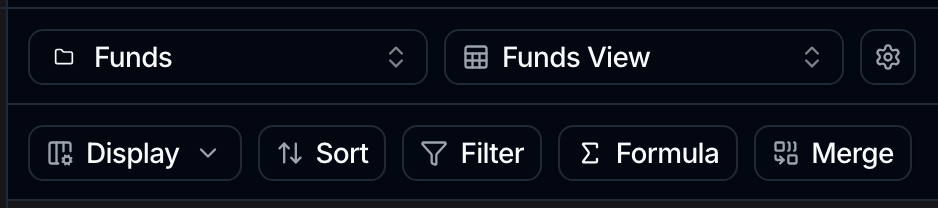
- Click Merge on the toolbar.
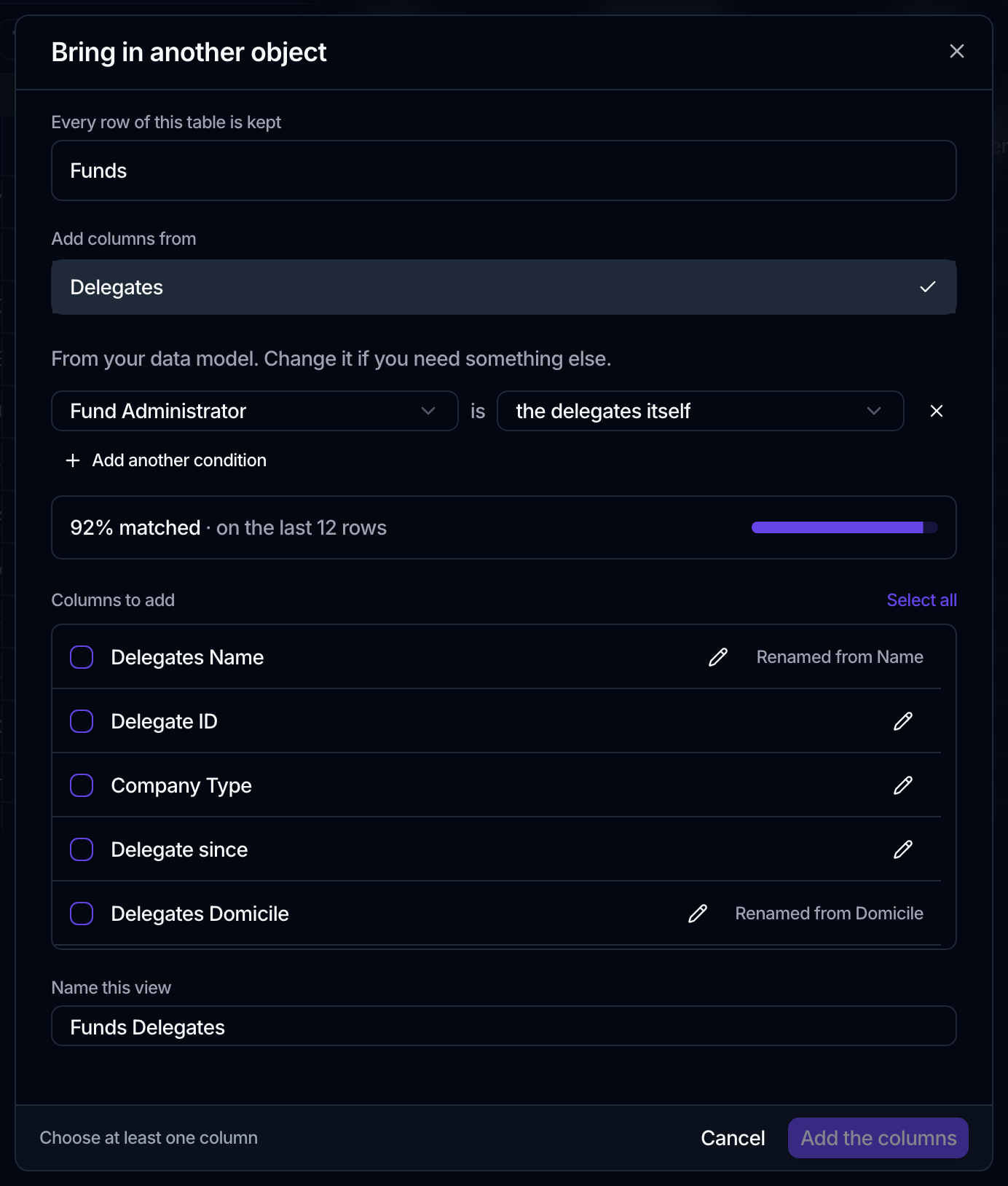
- In Add columns from, search for the object you want. The list separates Linked in your data model from Everything else.
- Answer how the rows go together, if you are asked (see below).
- Under Columns to add, tick the columns you want. Select all is there for a long list, and the pencil beside a column renames it.
- Give the result a name under Name this view, or keep the one suggested from the two objects.
- Click Add the columns.
How the rows go together
This is the one question the dialog asks, and the answer depends on what your data model already knows.
When the objects are already linked
Pick an object under Linked in your data model and the pairing is filled in for you, shown in the same two pickers you would use to write one yourself, with the note From your data model. Change it if you need something else.
The model's answer is the likeliest one, not the only one. If it is not the pairing you want, change it, and the dialog keeps offering the model's version in case you want it back.
When they are not
You get one question, phrased in your own objects: When does a trade go with a price? Answer it with one or more conditions, each pairing a column on your object with a column on theirs. Add as many as you need with Add another condition; all of them must hold for a row to match.
Spark also looks for likely pairs and offers them on one line, for example ISIN looks like Instrument ID, 94% of values overlap. Use it fills the condition in. When a condition has been filled in for you without being asked, the dialog says so, so you always know which answers are yours.
Watch the match rate
As soon as the conditions make sense, the dialog measures them against your real rows and reports something like 92% matched on the last few thousand rows.
Treat anything short of 100% as information rather than a failure. It is telling you how many of your rows will find a value in the borrowed columns, and the ones that do not will simply show empty. A number far lower than you expected usually means the condition is wrong, not that the data is missing.
When a row finds several
If one of your rows matches several rows on the other object, the dialog says so plainly, for example A trade finds up to 2 prices, and will not let you continue until you resolve it. You have two ways out:
- Show just one, choosing first or last, and the column that decides which, for example by when the record was last updated.
- Add another condition, narrowing the match until a row finds exactly one.
Which is right depends on the question. A price per trade date wants another condition; the latest known rating wants last.
Living with a merged view
The borrowed columns behave like any others for reading: filter on them, sort on them, total them, and show them on a canvas widget. They cannot be edited, and they do not appear in the record form.
Under the view's data panel, Linked data lists what the view is borrowing, what it matched on, and the current match rate, so you can check a view you did not build yourself.
A merge can also stop working later, through no fault of yours: the other object is unpublished, an attribute you borrowed is archived, or your access to it is withdrawn. Spark rechecks every time the view loads and tells you which link is affected and why, rather than failing the whole view.
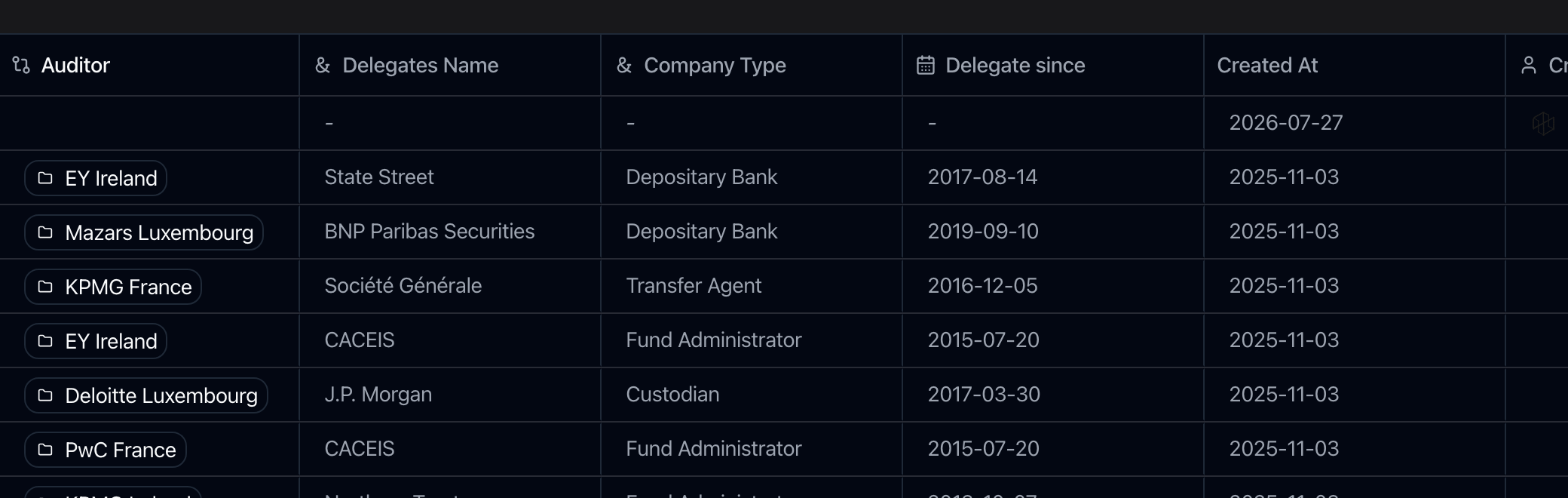
A borrowed column that collides with one of your own names is renamed for you, prefixed with the object it came from, and the row says so: Renamed from Name. You can also rename any borrowed column yourself with the pencil beside it.