Data object templates
Start from a ready-made data object schema instead of a blank table.
A template is a ready-made data object schema: a name, an icon and a set of attributes already defined, including any links to related objects. Starting from a template saves you from building common structures by hand and keeps related objects consistent.
Create from a template
- Go to the Data area and select Manage.
- Open the dropdown next to the New button.
- Choose Create from template.
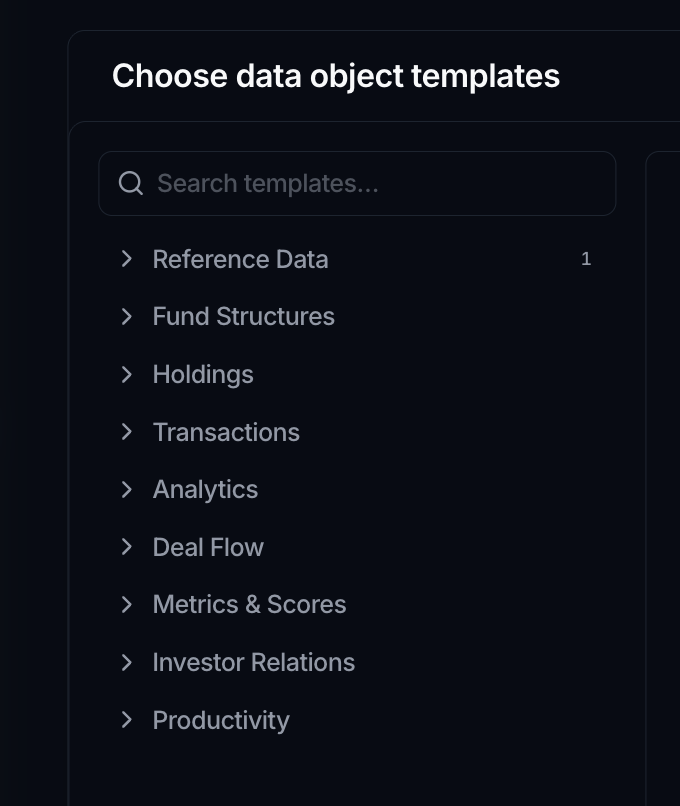
- In Choose data object templates, browse the list or use Search templates to find one.
- Select the checkbox on each template you want. Click a row to preview it on the right.
- Confirm with the Create data objects button.
You can select more than one template at a time, and each is created as its own data object.
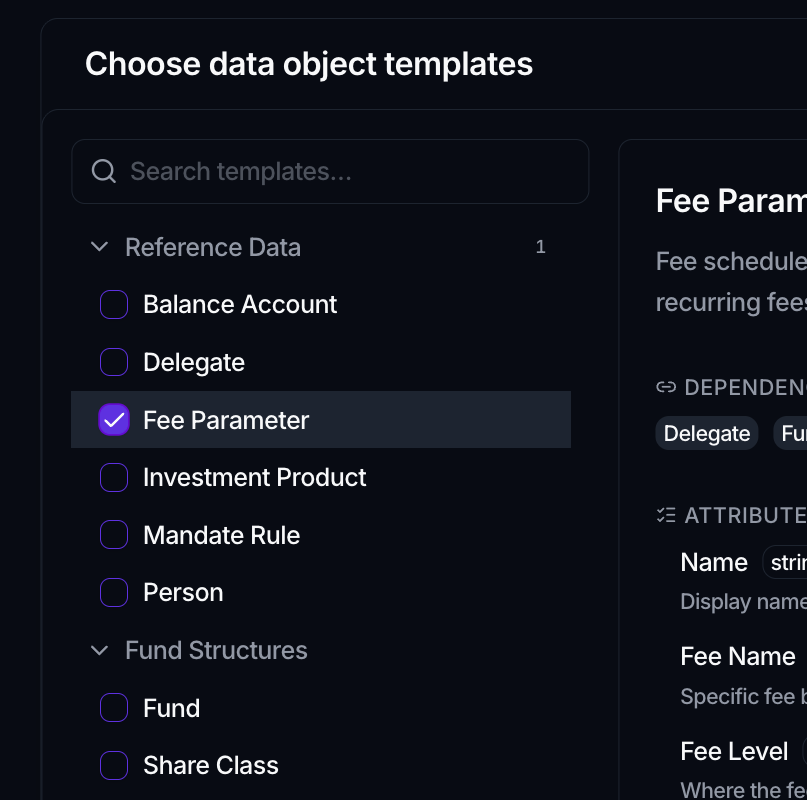
What the preview shows
Selecting a template on the left opens its detail on the right, with its description, its Attributes and their types, and any Dependencies. Dependencies are other objects the template links to.
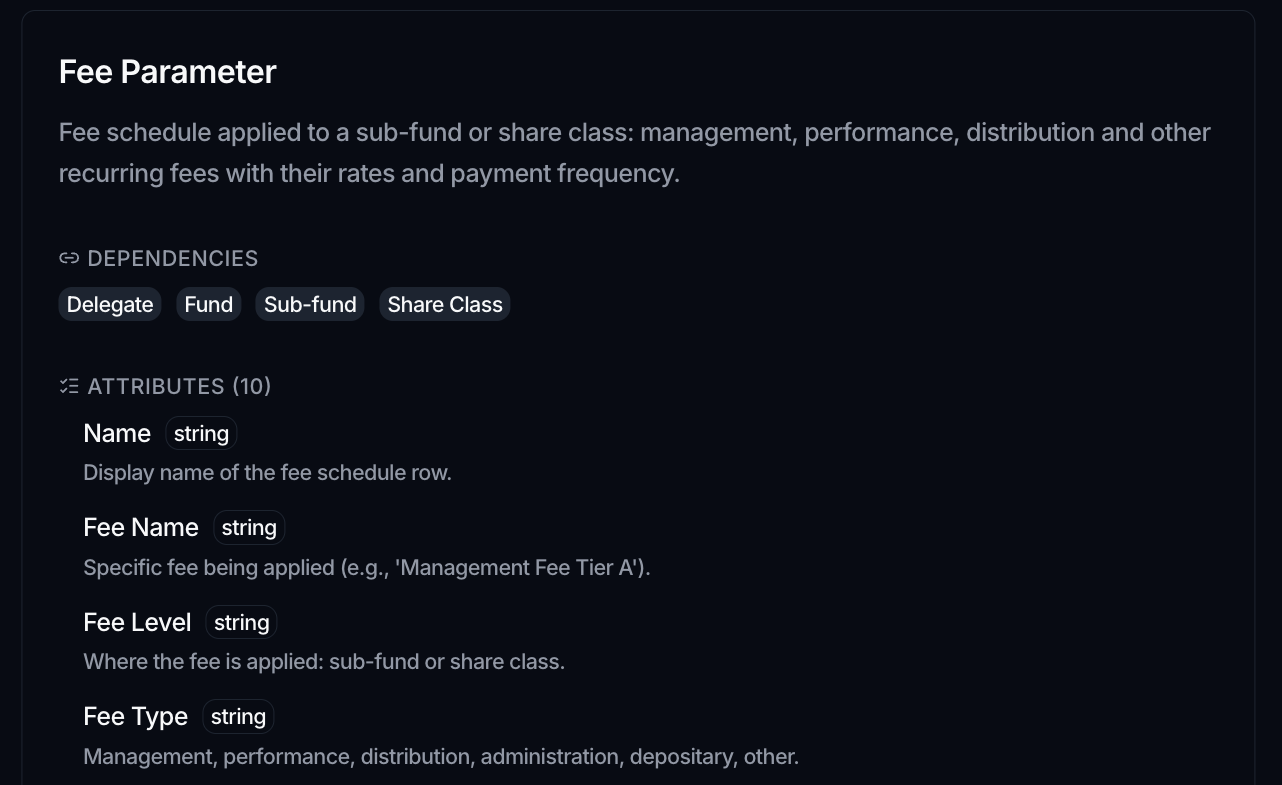
Choose what happens to each dependency
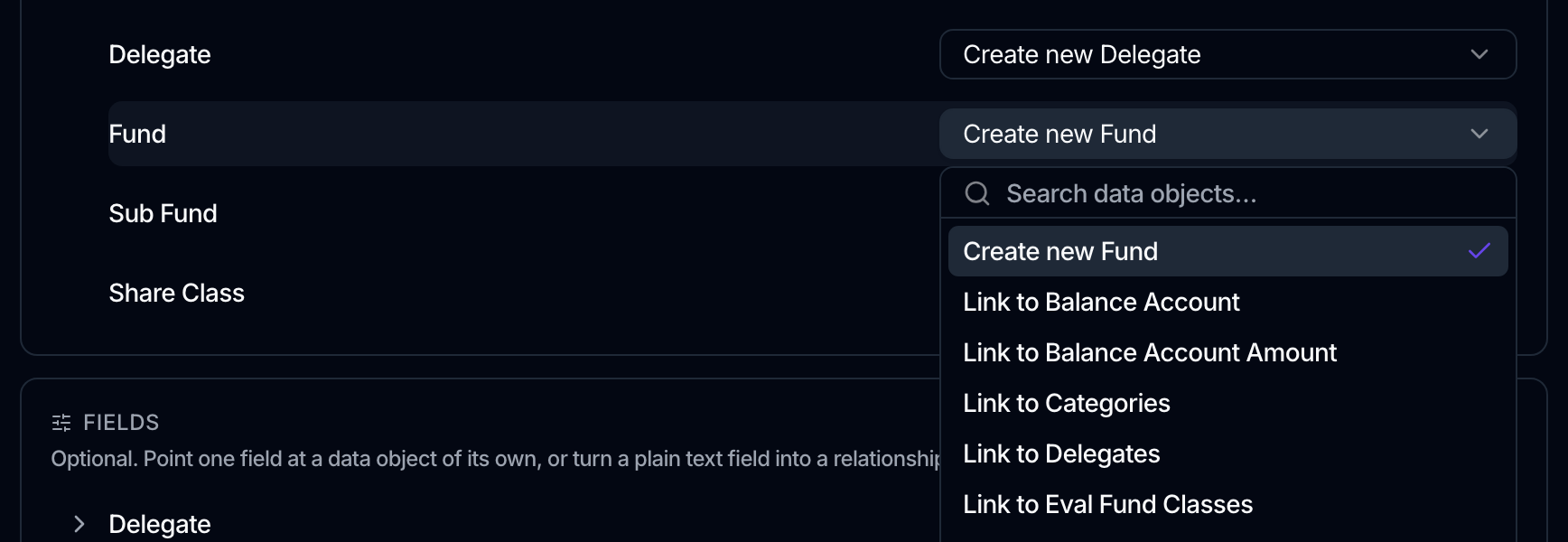
Once you have picked your templates, each dependency they need is listed with a choice. Open its selector and pick one of:
- Create new, named after the dependency (for example Create new Fund), which creates it as its own data object. This is the default and the right choice for a fresh workspace.
- Link to an object you already have, listed by name (for example Link to Delegates). The template points at that object instead of creating a second one alongside it. This is what keeps a workspace from ending up with two Funds objects. An object that cannot serve as the target is listed with the reason, and cannot be picked.
- Don't create, keep as text, which skips the dependency entirely. The attribute that would have been a link becomes a plain text field, so the values still arrive; they just are not linked to anything. You lose the ability to traverse the relationship in views, filters and canvas widgets, so choose it when you genuinely do not need the related object.
Override where a field points
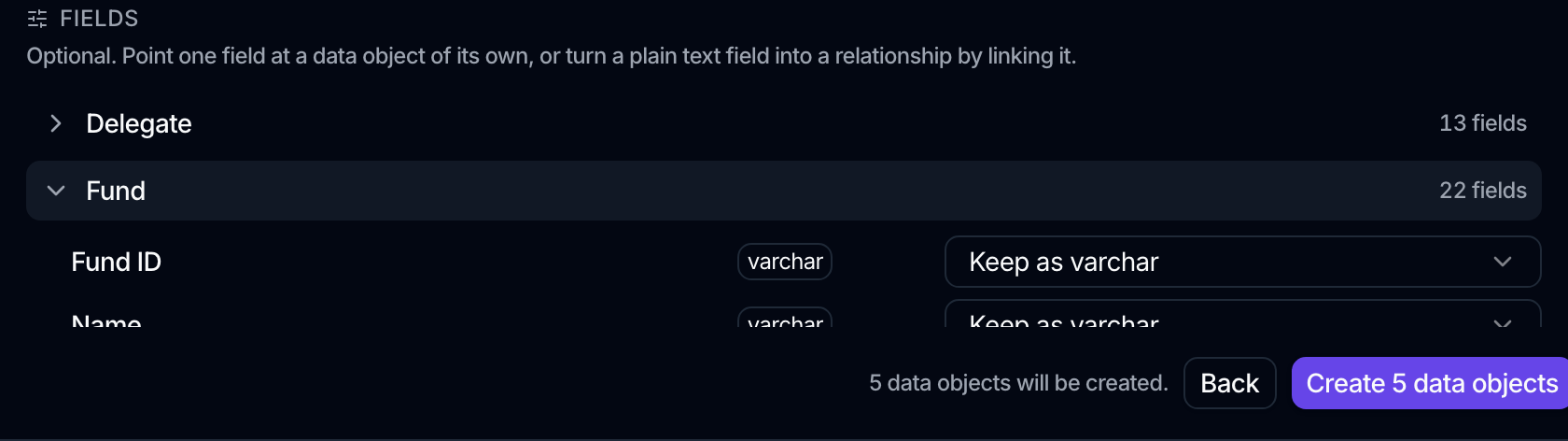
Dependencies are resolved as a whole, but individual fields do not have to follow. Below the dependencies, a Fields section lists each template you are creating. Expand one and every field is listed with its type and what it will become, so you can point a single field at a data object of its own while the rest keep the dependency default.
It also works the other way: a plain text field shows Keep as varchar, and linking it turns it into a relationship the template did not originally declare.
This matters when a template links to the same object twice for different reasons, for example a Delegate and an Administrator that both reference Counterparties in your setup but not in the template's.
How templates are organized
Templates are grouped by domain so related ones sit together: Reference Data, Holdings, Transactions, Analytics, Deal Flow, Metrics & Scores, Investor Relations and Productivity. Each group is collapsible, and a count shows how many templates you have selected within it.
After creation
Once you confirm, the new objects appear in your data object list and you land back on that list so you can review everything that was created. From there you can rename attributes, add your own, and start adding records. See Create a data object and Add, edit & import records.
The in-app template picker is always the source of truth. The set of templates changes over time, so the picker may list more, or name things differently, than any static description. The analytics templates in particular were refreshed recently, and the attributes that link one object to another now end in _uid, so a template you created earlier may name a field slightly differently from a fresh one.