Files
Put a filtered list of files on a canvas, and upload straight to it.
A files widget shows a filtered list of files on the canvas. For the shared editor mechanics, see Build a canvas.
Configure it
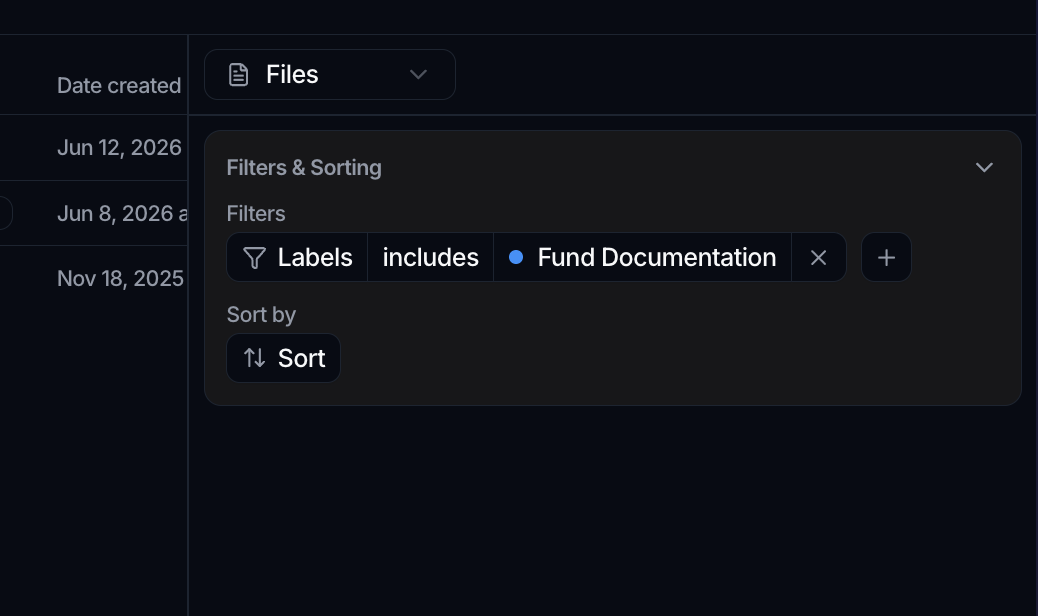
Like the tasks widget, the files widget is bound to the built-in Files object, so there's no data source or column selection. Its editor has a single Filters & Sorting panel with Filters and Sort by to control which files appear and in what order.
Working with the list
In view mode the widget lists the matching files with a filter control and an Upload button in its header, so you can add files directly to the source without leaving the canvas. The list pages through results with a Rows per page selector and a count in the footer.
Export
From the widget's ⋮ menu you can Export Chart to download the displayed files as a CSV (with columns for Name, Owner, Date Created, Date Modified and Labels), or Export card to save the list as a PNG. Expand opens it in a large modal.
Let the widget size itself
The Display panel has an Auto-fit height of canvas switch. Turn it on and the card takes the height its content needs rather than the grid rows you drew, up to a ceiling past which it scrolls. It suits a file list that grows, where guessing the right height means either wasted space or a widget that overflows. See Build a canvas.