Layout
Arrange widgets and share a canvas with your team.
Once a canvas has widgets, the last steps are arranging them and making sure the right people see them. This page covers laying out and resizing widgets, and how a canvas reaches your team. To add widgets first, see Build a canvas.
Arrange widgets
Layout changes happen in edit mode. Click Edit Canvas in the top-right banner (⌘E), or create a new canvas, which opens in edit mode already.
- Move a widget: drag it by its header to a new spot. Other widgets shift to make room.
- Resize a widget: drag its edge or corner handle. Widgets snap to the grid so rows and columns stay aligned.
- Add another widget: use the bottom toolbar, or right-click empty space and choose Add new item.
- Reuse a widget: copy a selected widget, then right-click and choose Paste (CTRL+V) to drop a duplicate.
When the layout looks right, click Save (⌘S) in the edit banner. Click Close to leave edit mode; if changes are unsaved, a Discard changes? prompt appears first.
The bottom toolbar can crowd a small screen. Use the chevron at its right end to collapse it while you drag widgets, then expand it again when you need to add more.
How a canvas reaches your team
Spark objects, including canvases, are workspace-wide. A canvas you create is visible to every member of the same workspace, so there is no per-canvas share action to send or grant access. Everyone in the workspace can open it from the Canvas section.
To point a specific team at a canvas, add it to a Space alongside the data objects and agents for that use case. A Space groups the pieces of one workflow so the team lands in the right place. See Create a Space for how to pin a canvas into one.
The card menu
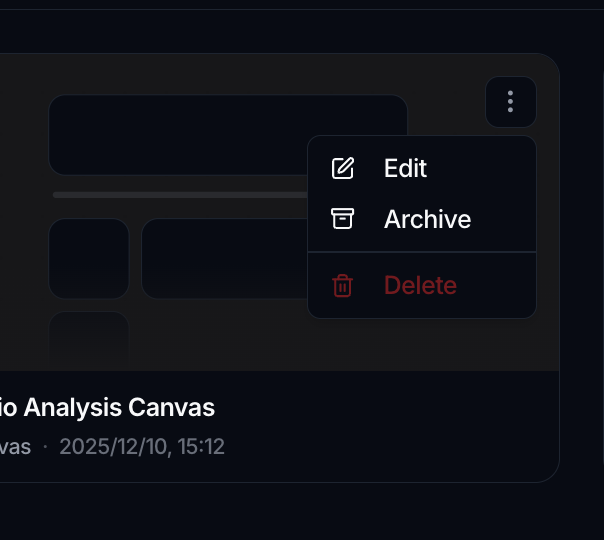
Everything you do to a canvas, rather than inside it, lives on its card in the Canvas list. Hover the card and open its ⋮ menu:
Duplicate a canvas
To start from a canvas you already have, open its card's ⋮ menu and choose Duplicate. Give the copy a name and Spark builds it server-side with every widget, its layout, and its saved contexts. The original is untouched, and you land on the copy ready to edit.
It's the quickest way to produce a per-fund or per-desk variant of a dashboard: duplicate, then re-point the data sources and filters rather than rebuilding the layout.
Duplicating needs a clean canvas, so save or discard your changes first. The action is unavailable while a canvas has unsaved edits, since the copy is made from what is stored rather than from what is on your screen.
Archive or delete a canvas
If a canvas is no longer needed, open its card's ⋮ menu and choose Archive. Your widgets and layouts stay safe. To bring it back, turn on Show archived above the list and choose Restore from the same menu.
To remove a canvas for good, choose Delete from that menu instead. The confirmation tells you how many tasks are linked to the canvas: those tasks are kept but detached (they simply lose their canvas link), while the canvas and its saved contexts are permanently deleted.
Where to go next
- Start a new canvas: Build a canvas
- Group a canvas with its use case: Create a Space
- Understand the canvas model: Core concepts: Canvas