Context variables
Define context variables on a canvas and link widgets to them so one canvas can focus on different slices of data.
A canvas can define context variables: named filters that live on the canvas and, once linked to its widgets, let one canvas focus on different slices of data without rebuilding it. Set a context value (say a counterparty or a date) and every linked widget re-filters to match. This is also how a task points a shared canvas at its own data.
What a context variable is
Each context variable has a name, a type, and one or more links to widget fields. The value you set for a variable is applied as a filter on whichever widget field it's linked to, so the same variable can drive several widgets at once. A variable that isn't linked to any widget field has no effect, and the canvas won't save until it's linked to at least one.
Define context variables
Context is edited from the canvas top bar:
- Open the canvas's ⋮ menu and choose Edit Context. The top bar switches to context-editing mode and shows an edit banner.
- Click Add filter to create a variable.
- Enter a Name, choose a Type, and click Confirm. Names must be unique; a duplicate shows This name is already taken.
- Variables appear as chips in the bar. Drag them to reorder.
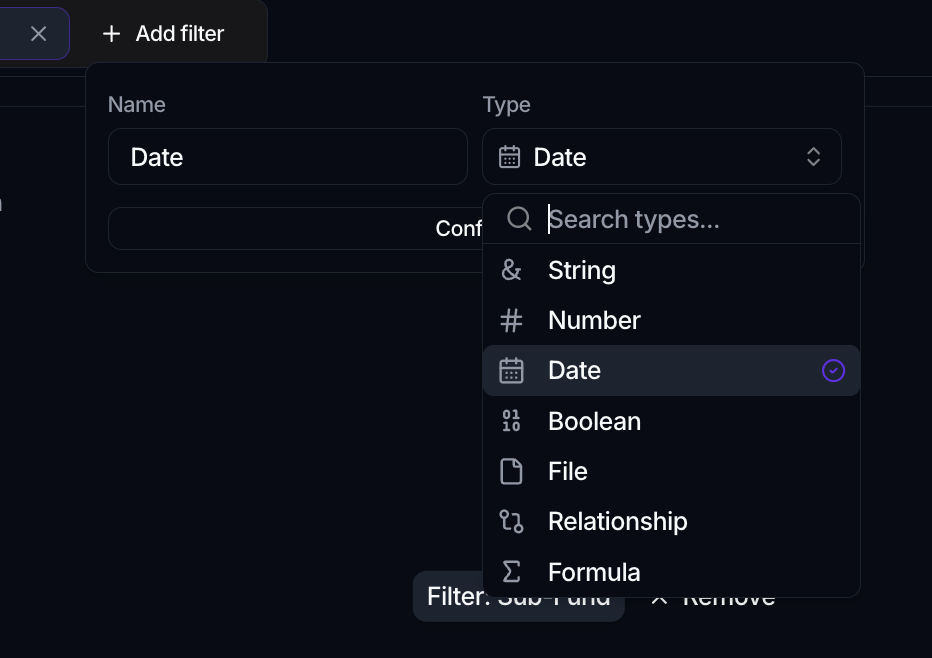
Link a variable to a widget
Linking is what makes a context variable actually filter something. While in context-editing mode, select a variable, and each widget card shows a control to bind it:
- Click Select attribute to filter on a widget and pick the field the variable should filter. Once set, the control reads Filter: [attribute], and Remove unbinds it.
- For table widgets, a Relationship selectors section (columns Column and Filter by) lets you scope a relationship column's selector by the context as well.
Repeat for every widget the variable should drive. A variable can link to as many widgets as you like, and saving is blocked until each variable links to at least one widget field.
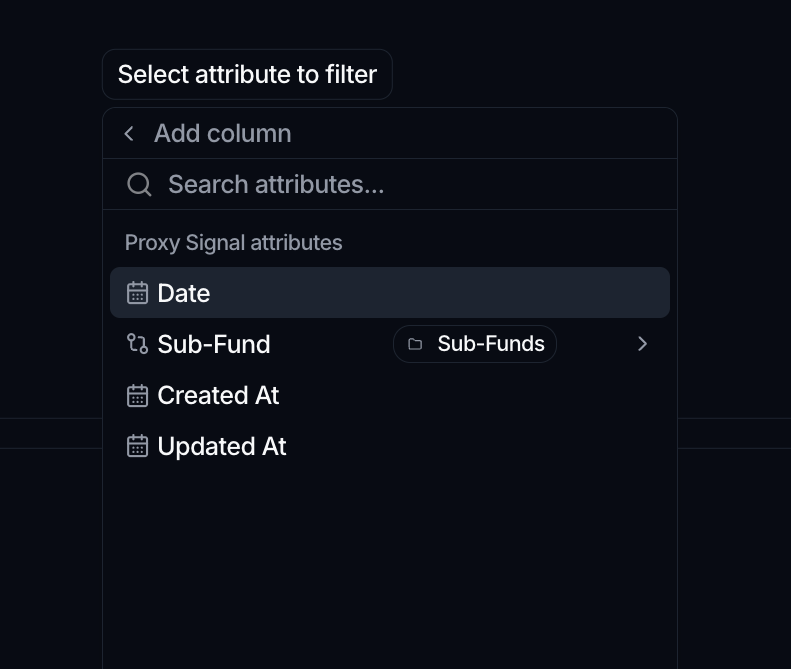
Click Save in the edit banner to keep your context setup, or Close to leave without saving.
Set a context value
Back in view mode, the top bar shows one filter row per context variable, labeled with the variable's name. Set a value there and every linked widget updates automatically to that slice. Clear or change the value to refocus the canvas.
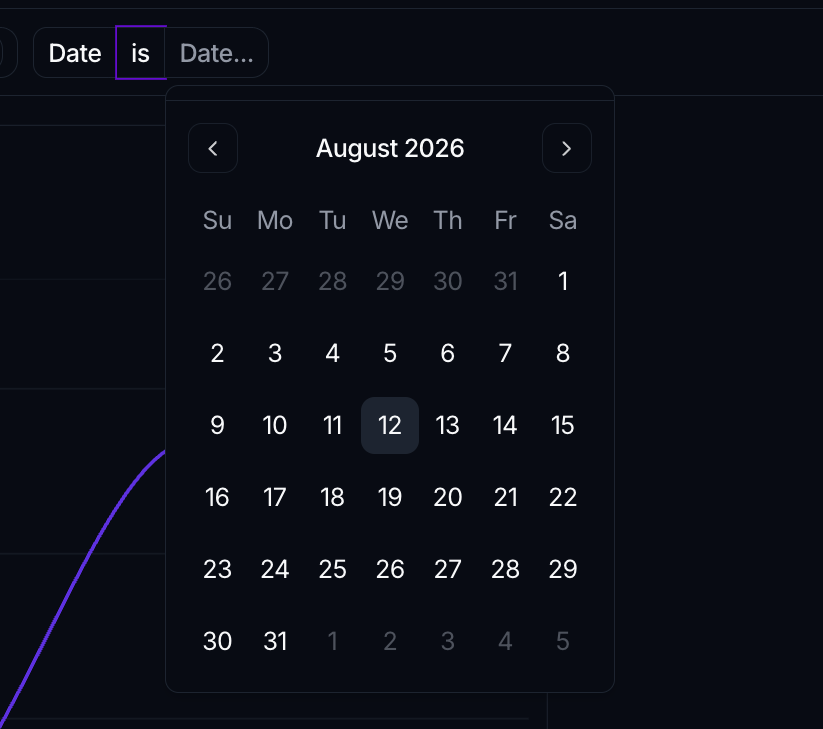
There's no named context switcher on the canvas itself; you set the current values inline in the top bar. Saved sets of values come from elsewhere, chiefly a task that presets a canvas's context so it opens focused on that task's data.
Where to go next
- Preset a canvas's context from a task: Attach a canvas
- Build the canvas first: Build a canvas
- Arrange and share it: Layout