Attach a canvas
Attach a canvas to a task so its dashboard and data sit beside the work.
A task can be linked to a canvas so the dashboard for a piece of work sits right beside the work itself. You set this link on the task after it exists, not while creating it. A task is not linked to an individual data record directly; its connection to your data runs through the linked canvas and the context you preset on it. For the surface itself, see Core concepts: Canvas.
Link a task to a canvas
- Open the task from the Tasks list.
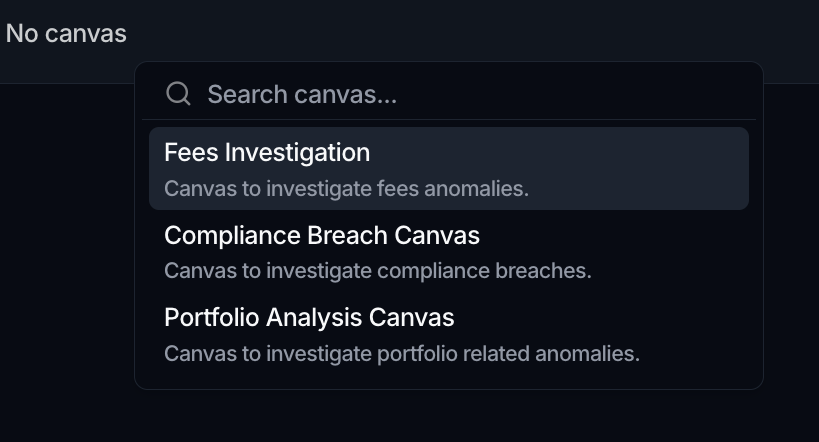
- Below the description, find the canvas selector. It reads No Canvas until one is chosen.
- Click it, then use Search canvas... to find a canvas.
- Select the canvas. It renders inline on the task.
To change the link later, open the selector again and pick a different canvas.
Connect it to data through context
If the chosen canvas defines context variables, you can preset them so the canvas opens already focused on this task's data:
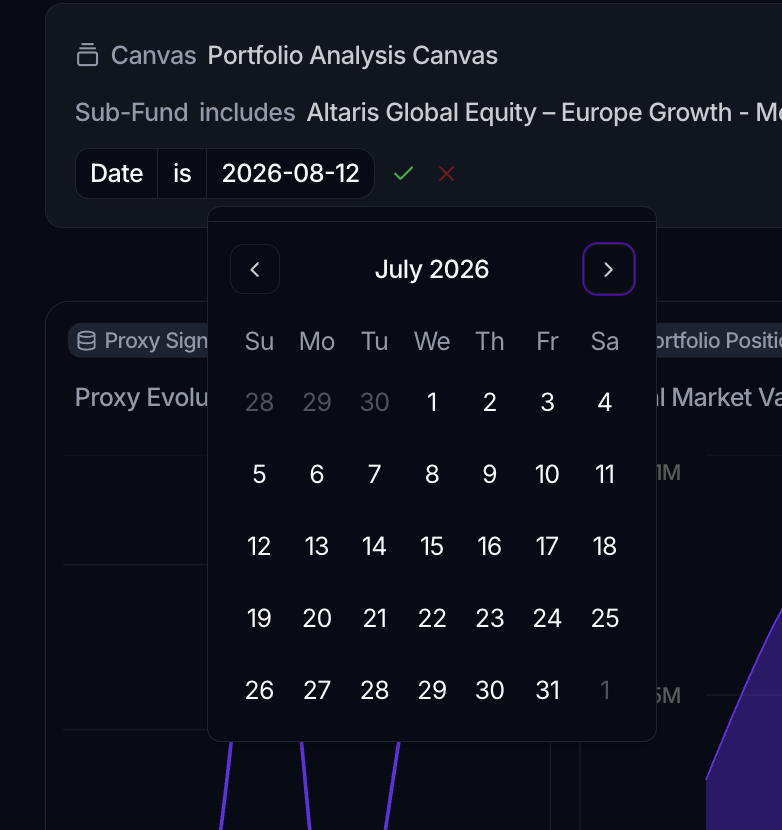
- When you pick the canvas, the selector's second step, Configure Context, lists the canvas's context variables. Set a value for each, for example a counterparty or a date range, and click Confirm.
- On the task, the linked canvas appears under a Canvas panel, with each context variable shown as a row below it. Use a row's pencil to change its value later.
The canvas then filters to those values whenever the task is open, which is how a task stays tied to the right slice of data without a direct record link.
Direct task-to-record linking is not available. If you want a task to point at specific records, link it to a canvas whose widgets read those records and preset its context variables to narrow them.
Where to go next
- Build the canvas first: Build a canvas
- Understand the surface: Core concepts: Canvas
- Track the work itself: Create a task