Workspace settings
Configure a workspace's general settings.
Workspace configuration lives in the Settings tab, which groups pages into Account, Administration, Data, Agent, and Monitoring. The workspace-level controls an administrator manages are all under Administration.
What lives under Administration
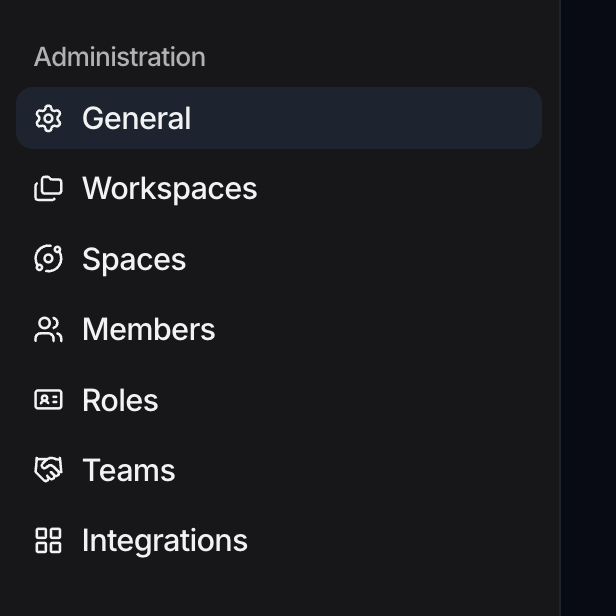
The Administration group is a heading rather than a page of its own, so it has no landing screen. It gathers these pages:
| Page | What it is for |
|---|---|
| General | The workspace name, color, and description |
| Members | People with access to the workspace |
| Roles | Permission sets you assign to members |
| Teams | Groups used to organize members |
| Integrations | Workspace-level connections such as SFTP |
| Workspaces | Switch between or create workspaces |
| Spaces | Use-case groupings of data objects, canvases, and agents |
Edit general settings
The General page is where you set a workspace's identity.
- Open Settings, then General under Administration.
- Edit the Name field. This value appears in the workspace switcher and across the app.
- Pick a workspace Color from the color selector. The color is used as the workspace's visual accent.
- Optionally fill in the Description to explain the workspace's purpose.
- Click Save changes. The button stays disabled until you make an edit.
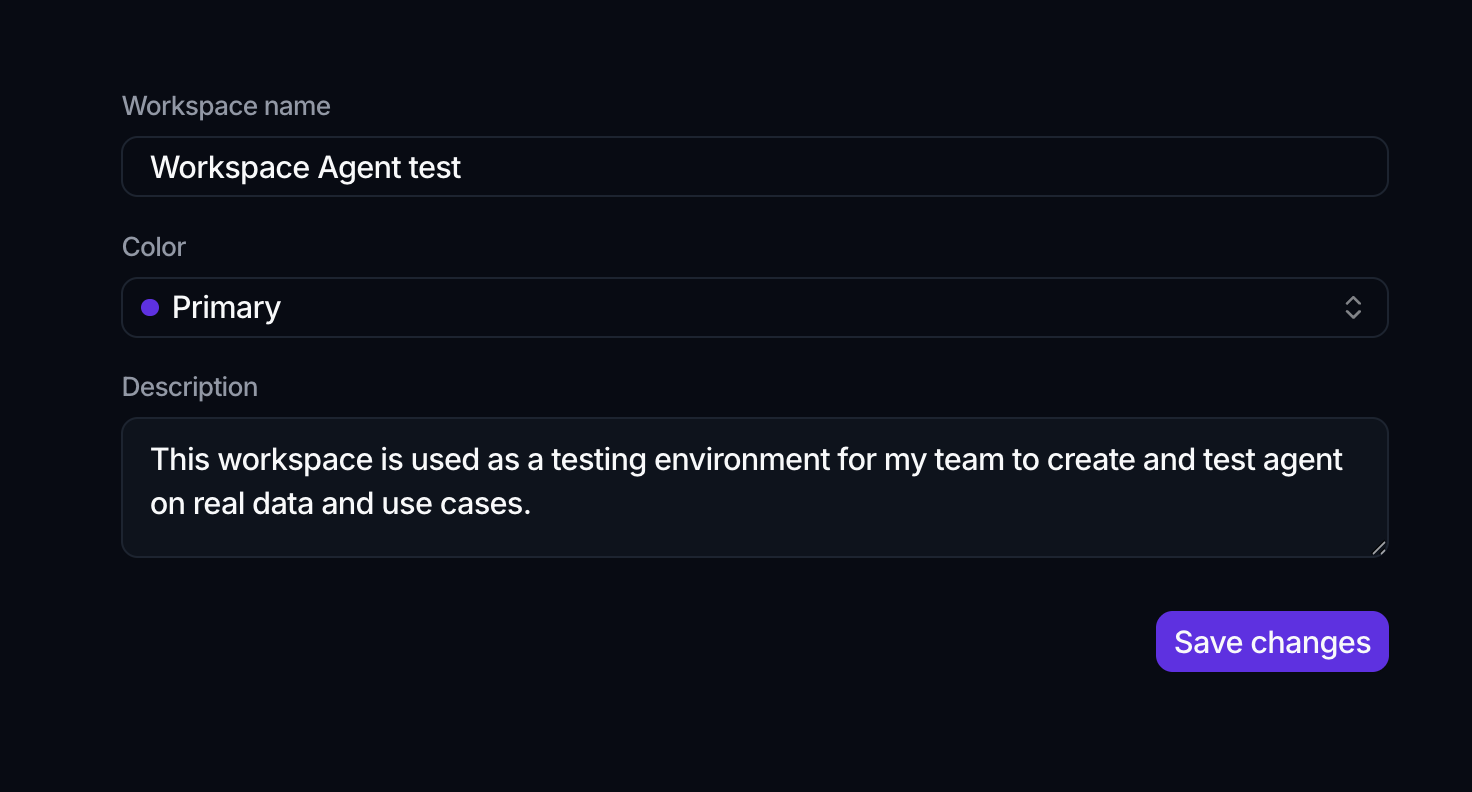
There is no logo or full branding upload on this page. Workspace identity is limited to the name, color, and description.
Workspaces vs Spaces
Two nearby pages are easy to confuse. Workspaces is where you switch to or create a separate workspace, which is the multi-tenant boundary for your data. Spaces organize content inside a single workspace into use-case groupings. For the conceptual difference, see the linked concept page below.
Where to go next
- Manage access: Members
- Connect external systems: Integrations
- Organize content: Manage Spaces
- The model behind it: Workspaces & organizations