Profile
Set up your own display name, picture, and interface theme.
Your Profile holds the personal settings that are yours alone, separate from the workspace-wide Administration pages. It lives under Settings, in the Account group. Open Settings, then Profile under Account.
Set your display name and picture
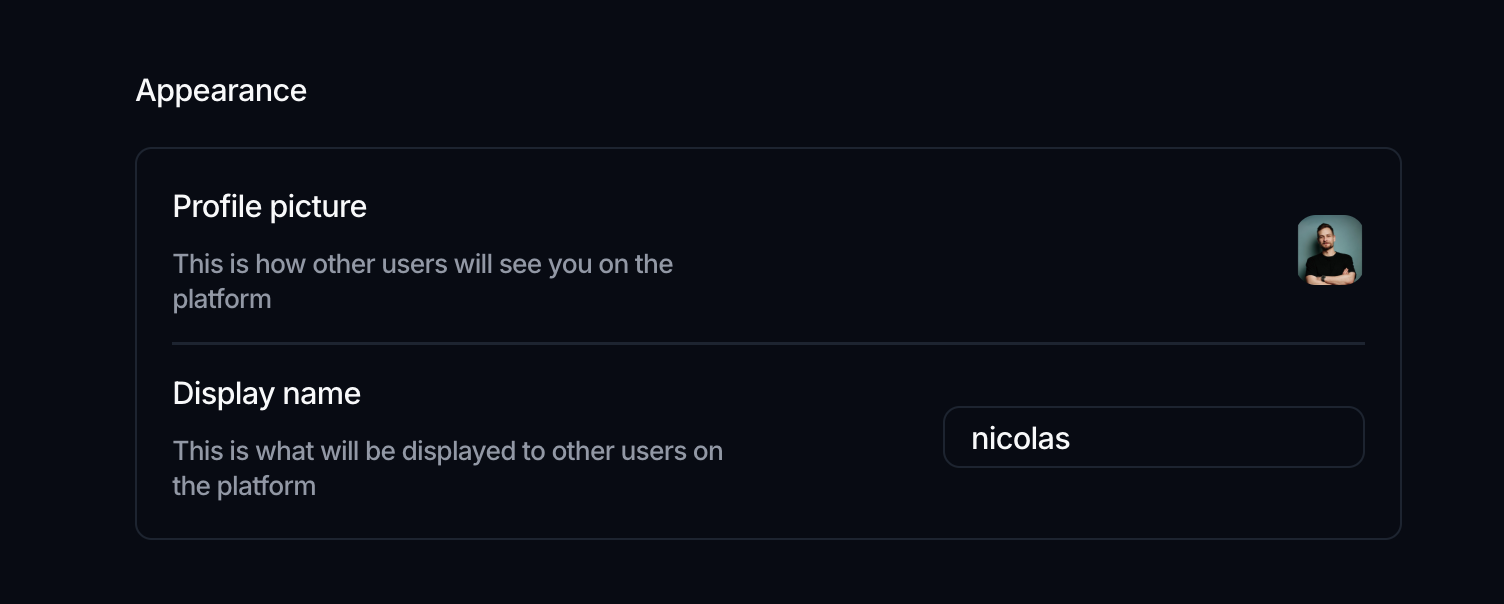
The Appearance section is how other people see you across the platform:
- Profile picture: upload an image, then use the adjust dialog to scale and position it. It saves as soon as you confirm.
- Display name: the name shown to other users. Type it in and click away; it saves on its own, with no separate save button.
Choose your interface theme
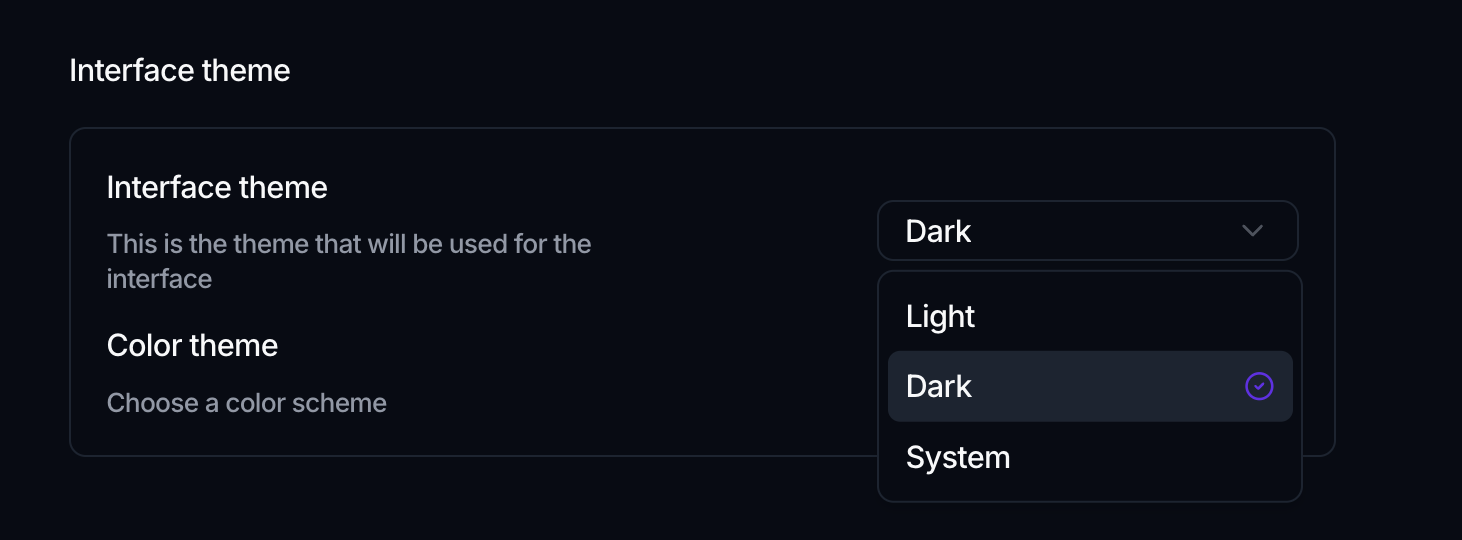
The theme settings change how the app looks for you, not for the whole workspace:
- Interface theme: pick light, dark, or the system setting.
- Color theme: choose a color scheme for the interface.
Interface language
The Interface language shows the language the app is displayed in. It's fixed for now, so this is read-only.
Your email and password aren't managed here; sign-in is handled by your organization's identity provider. The Profile page covers your picture, display name, and theme only.
Where to go next
- Configure the workspace itself: Workspace settings
- See who else has access: Members