Members
Invite people to a workspace and manage their access.
Everyone who works in a workspace is a member. You invite people, see who has access, and remove them from the Members page under Administration. What each member can do is governed by their roles and teams; see Teams & roles.
The members list
The Members page lists everyone with access. The table shows Name, Email, Status, and Last seen, and you can filter it with the search box by name or email.
Invite a member
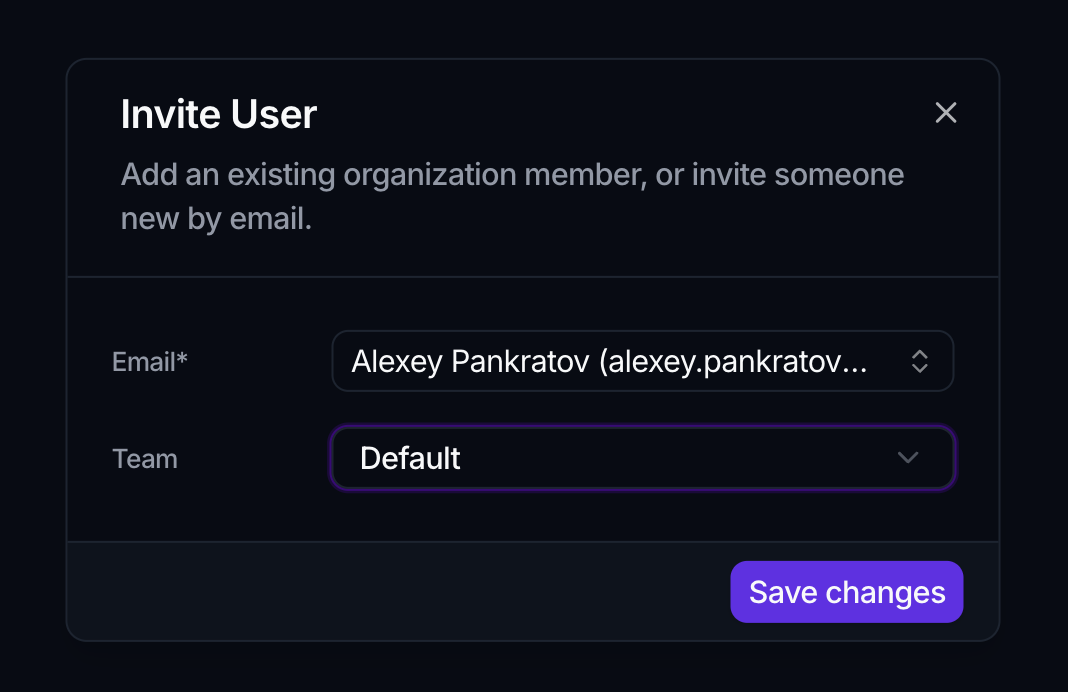
- Click Invite to open the Invite User dialog.
- In the Email field, pick an existing organization member from the list, or type any other email address to invite someone new.
- Optionally choose a Team for the person.
- Click Save changes.
Existing organization members are added to the workspace immediately. People invited by a new email address appear once they accept, so their Status shows as pending until then.
Manage a member
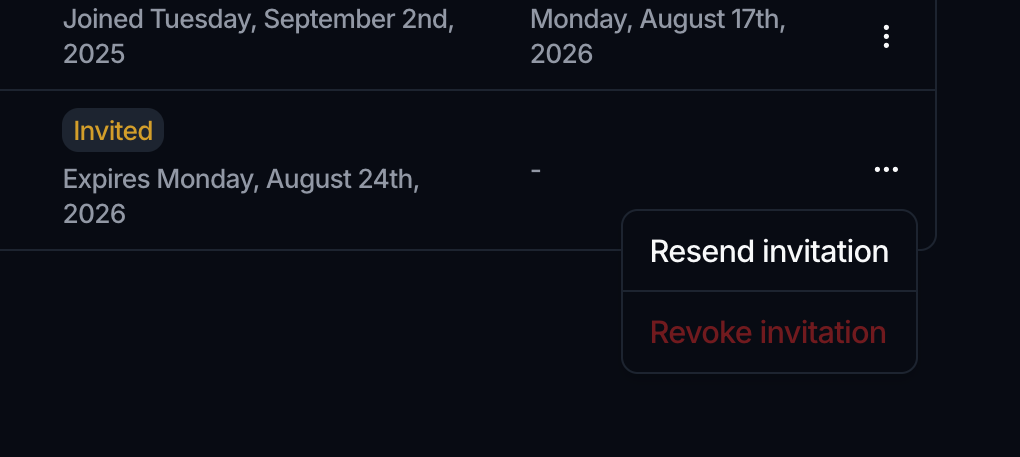
Use the ⋮ menu on a member's row to act on them:
- A pending invitation offers Resend invitation and Revoke invitation.
- An active member offers Remove member, which asks for confirmation first. You cannot remove yourself.
Internal system accounts, such as the support user present in every workspace, are hidden from the members list and cannot be removed.
Where to go next
- Control what members can do: Teams & roles
- Understand the container: Workspaces & organizations