Manage Spaces
Reorder, archive, restore and delete Spaces, and how Space visibility works.
Spaces need a little upkeep as your workspace evolves: ordering them, tucking away the ones you're done with, and occasionally removing one. You manage all of it from the Spaces list in Settings (under Administration).
Who can see a Space
A Space is workspace-wide: every member of the workspace can see it. There's no per-Space sharing or visibility setting to configure, so once a Space exists, your team already has it. Managing Spaces is therefore about ordering and lifecycle, not access.
Reorder Spaces
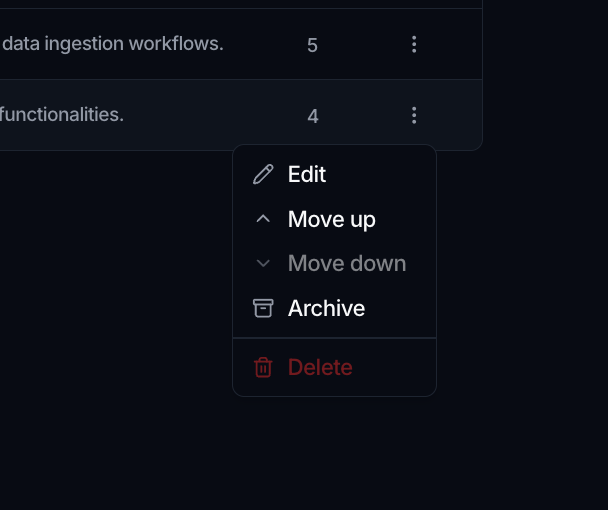
The order of Spaces in the list is the order they appear in the sidebar and home. To change it, open a Space's ⋮ menu in the list and choose Move up or Move down.
Archive a Space
When a use case wraps up, archive its Space to get it out of the way without losing anything. Open the Space's ⋮ menu and choose Archive. The Space drops out of the sidebar and home immediately; nothing inside it is deleted.
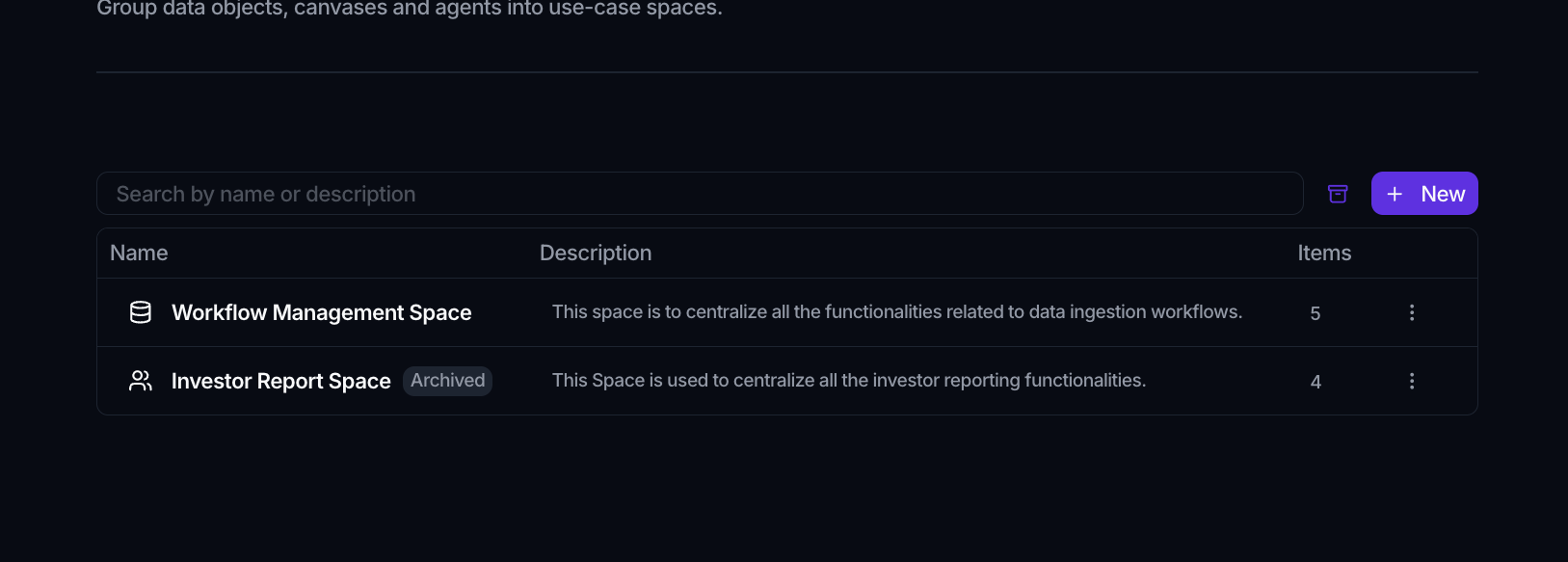
Archived Spaces are hidden by default. Turn on Show archived in the Spaces list to see them (each is marked with an Archived badge). To bring one back, open its ⋮ menu and choose Unarchive. Note that an archived Space can't be edited until you unarchive it.
Delete a Space
To remove a Space for good, open its ⋮ menu and choose Delete, then confirm in the Delete space? dialog.
Deleting a Space removes only the Space itself. The underlying data objects, canvases, workflows, and agents it grouped are not deleted; they stay in the workspace.
Where to go next
- Create one and add items: Create a Space
- The idea behind Spaces: Core concepts: Spaces