Teams & roles
Group members into teams and control what they can do with roles (RBAC).
Access in a workspace is shaped by two things under Administration: Teams group people who work together, and Roles grant the permissions those people have. A team carries a role, and the role decides what its members can do. Together they are Spark's role-based access control. For adding people in the first place, see Members.
Teams
A team groups people who work together and gives them a role in one move. Every member belongs to at least one team, and one team is marked as the default: it is preselected when you invite someone, and it cannot be deleted.
The Teams list
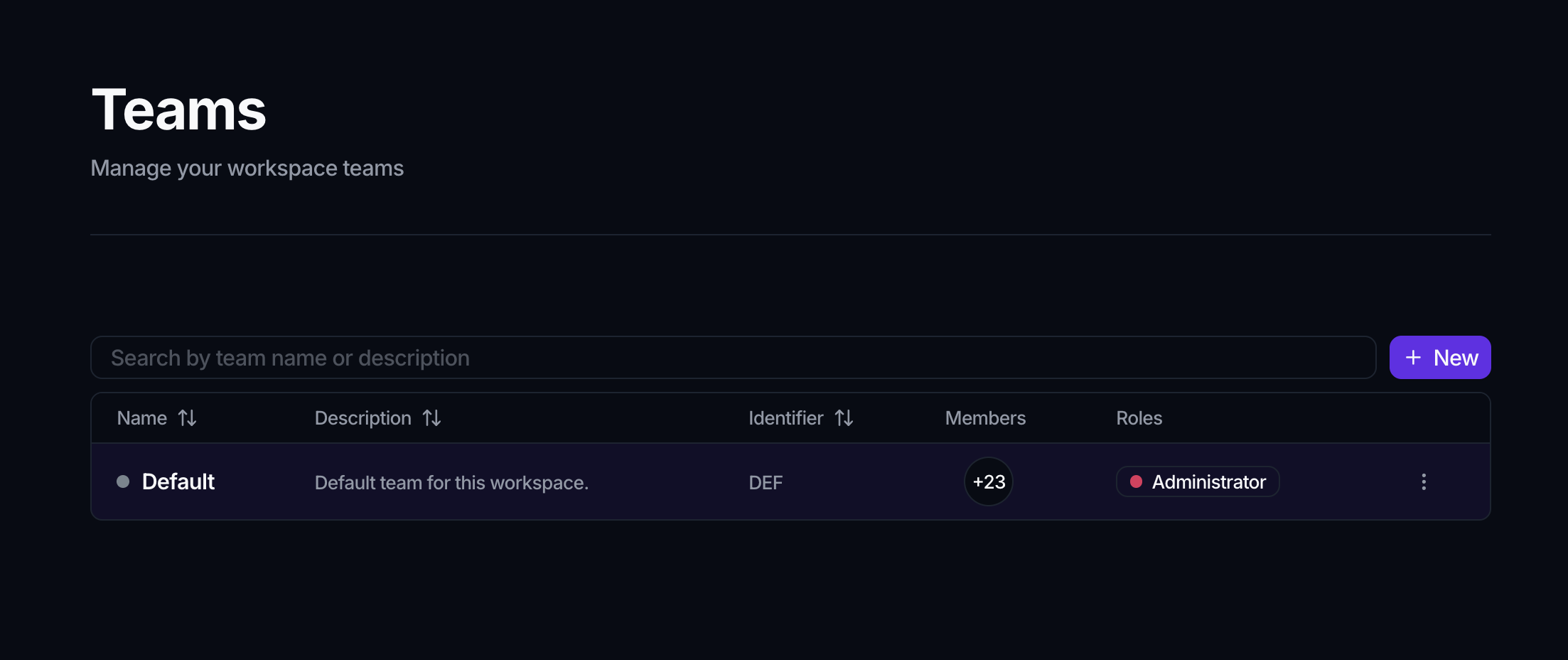
Open Teams under Administration to see every team in the workspace. The page is titled Teams, and the search box filters by team name or description. Each row shows:
- Name, with a color dot so teams are easy to tell apart at a glance.
- Description.
- Identifier, a short uppercase code (up to 3 letters) that stands in for the team in compact places.
- Members, an avatar stack of the people on the team. It shows the first 2 and a +N button that reveals the rest on hover, or No members when the team is empty.
- Roles, the role badges the team carries, again with a +N overflow.
The default team's row is tinted so you can spot it, and its ⋮ menu has Delete disabled.
Create a team
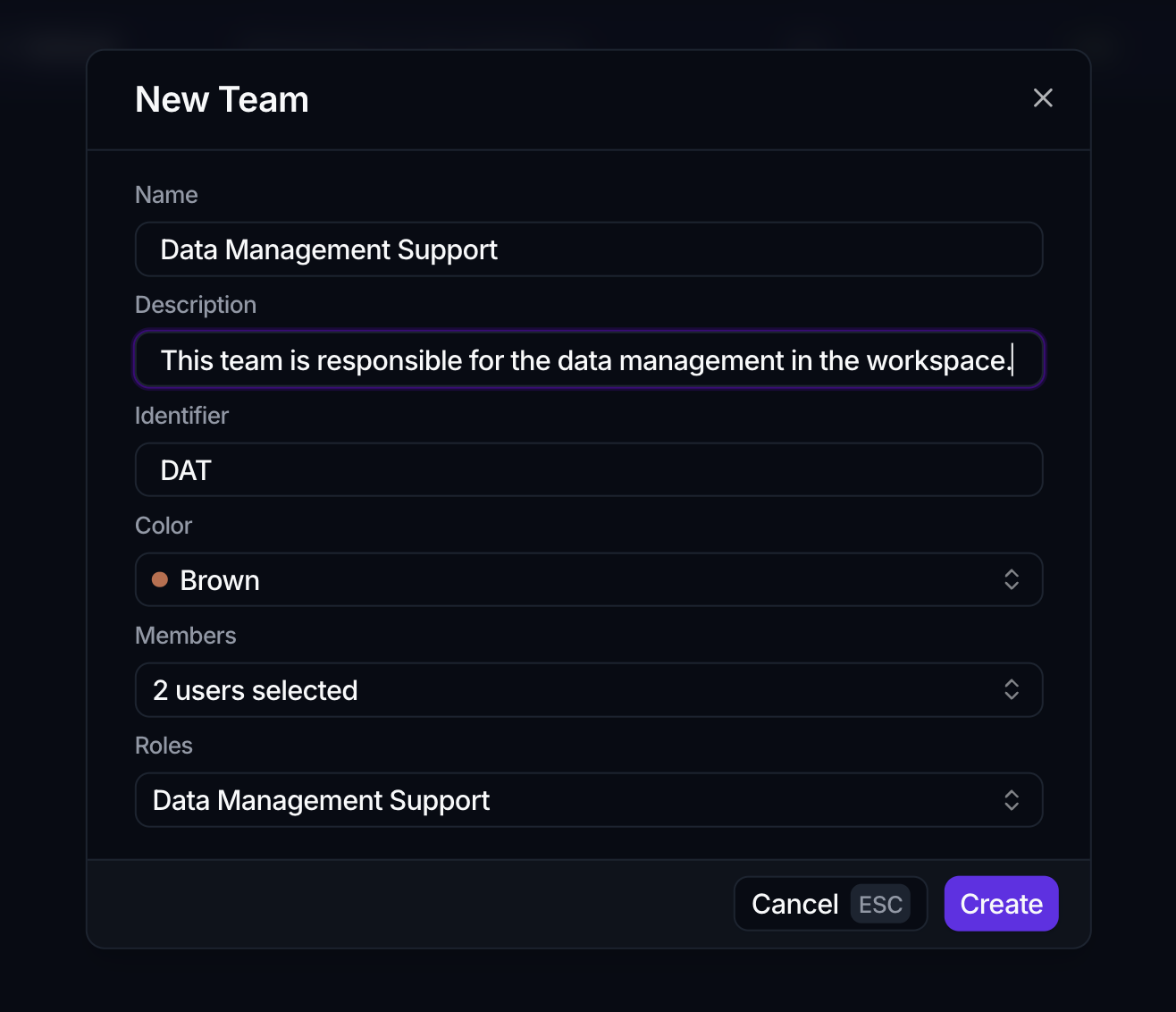
- Click New to open the New Team dialog.
- Fill in the fields:
- Name and Description.
- Identifier, up to 3 letters (letters only, forced to uppercase as you type).
- Color, picked from the color selector.
- Members, chosen from the workspace's people.
- Roles, the role the team will carry.
- Click Create.
A team must have a name, description, identifier, color, and at least one role before you can create it. Although the field is labelled Roles, a team carries a single role in practice: choosing another replaces the current one.
Edit a team
Open a team to edit it. The heading reads Edit Team followed by the team name, and there are three tabs: Display, Members, and Roles.
The Display tab holds the team's Name, Description, Identifier, and Color. These fields don't save on their own: as soon as you change one, a Careful, you have unsaved changes! toast appears with Reset and Save changes. Click Save changes to commit, or Reset to roll the edits back.
Add and remove members
The Members tab is where you change who belongs to the team. Membership changes here save immediately, separately from the Display fields.
- Add members: click Add to open the Add members dialog. It lists everyone not already on the team, with a Search members box; tick one or more, then click Add.
- Remove a member: use the × on a member's row. A Remove member dialog confirms first.
An empty team shows a No members yet prompt with an Add button to get started. One rule is enforced on removal: a person must always belong to at least one team, so Spark blocks the removal (with a short warning) if it would leave someone with no team.
Assign a role to a team
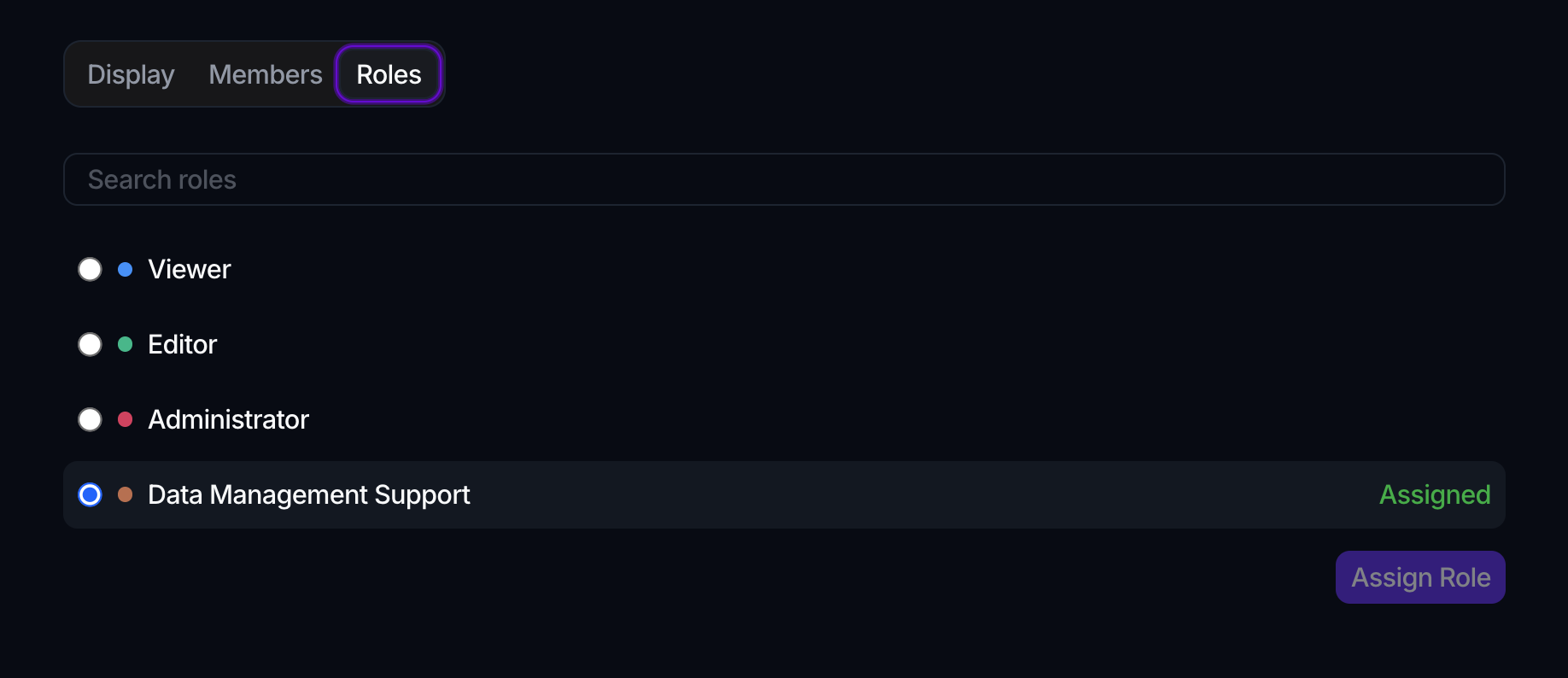
The Roles tab lists every role in the workspace as a set of radio buttons, and the role the team currently carries is marked Assigned. Pick a different role and click Assign Role to switch to it. Because a team holds a single role, assigning a new one replaces the old, so this is also how you change what the whole team can do.
Delete a team
Use the ⋮ menu on a team's row and choose Delete; a Delete team dialog confirms, and deletion cannot be undone. The default team cannot be deleted, so its Delete is greyed out. To rename a team instead, edit its Name on the Display tab.
Roles
A role is a named bundle of permissions with its own color. You grant a role to a team (on the team's Roles tab), and everyone on that team inherits its permissions.
The Roles list
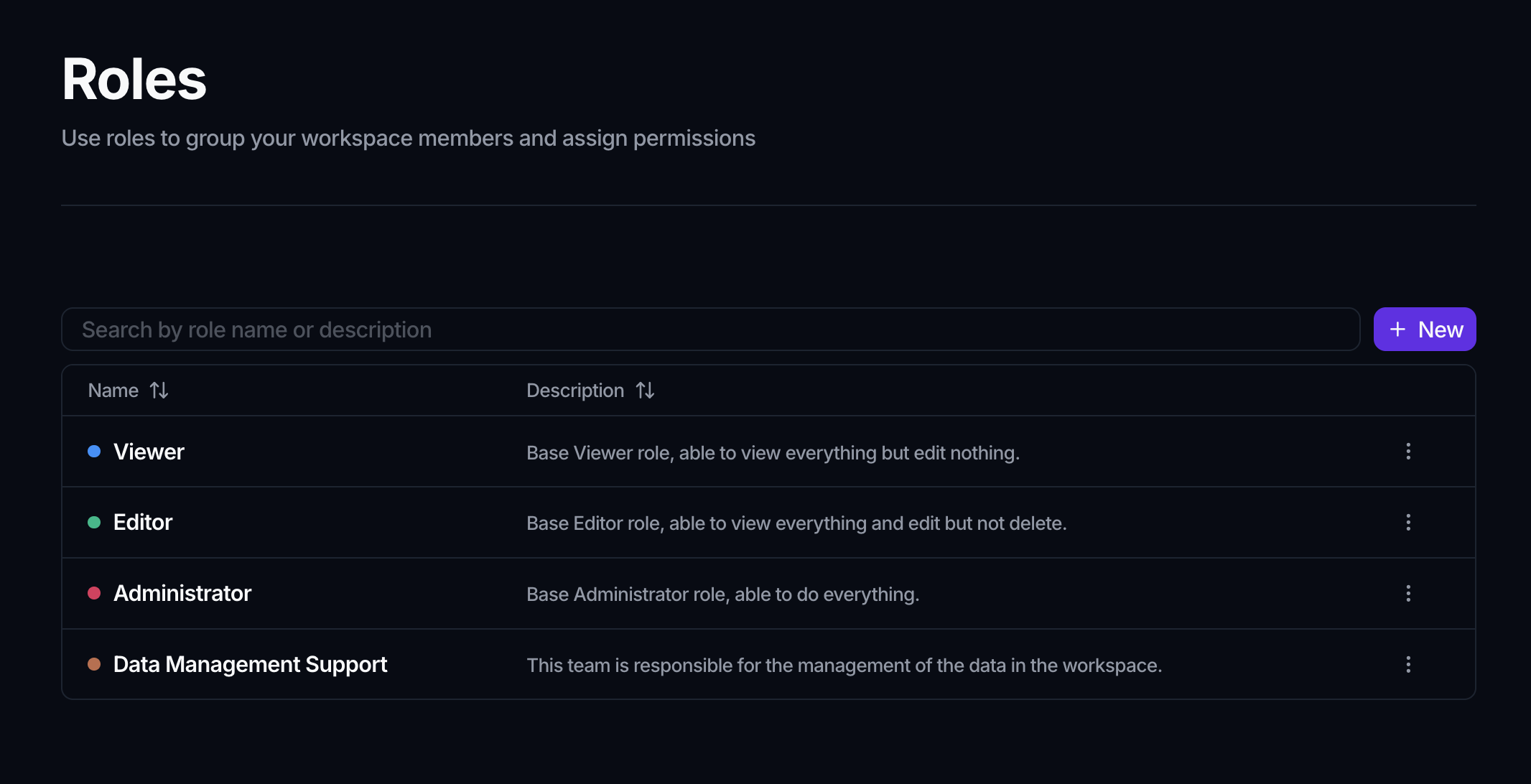
Open Roles under Administration. The page is titled Roles with the note Use roles to group your workspace members and assign permissions, and the search box filters by role name or description. Each row shows the role's Name (with its color dot) and Description.
Create a role
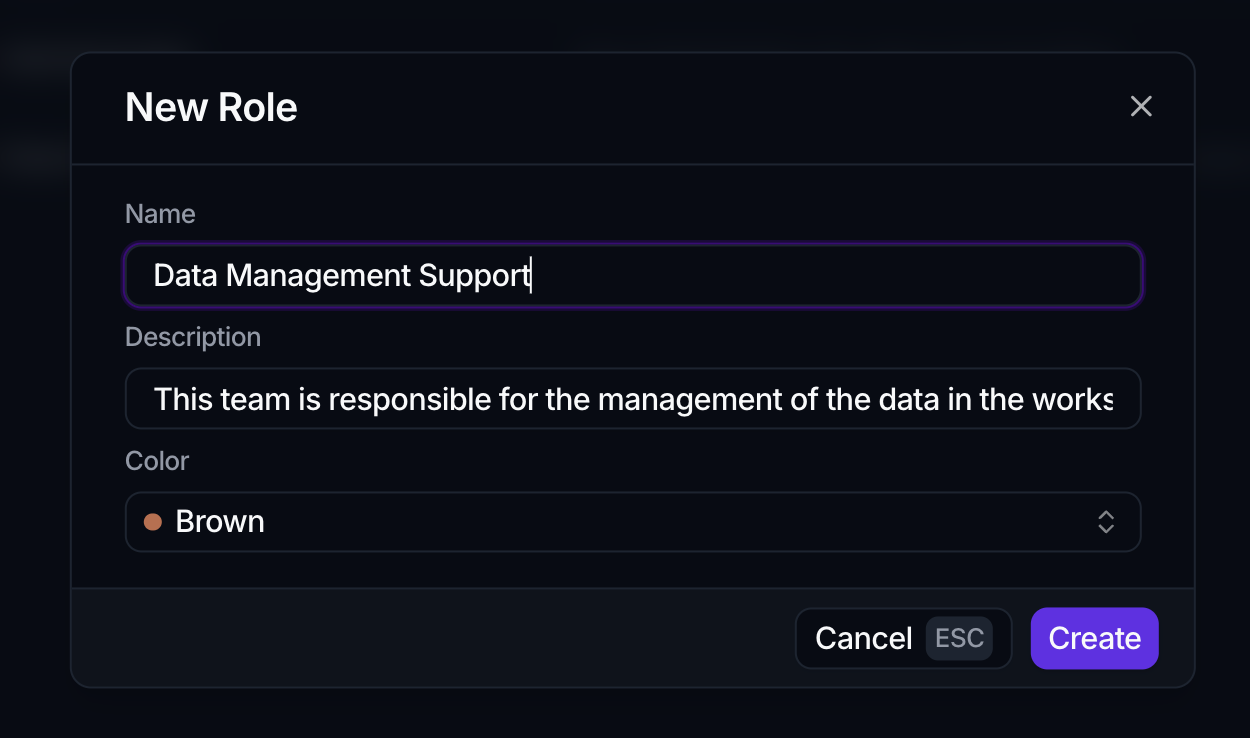
- Click New to open the New Role dialog.
- Set a Name, a Description, and a Color.
- Click Create.
All three fields are required.
Edit a role
Open a role to edit it. The heading reads Edit Role followed by the role name, with two tabs: Display and Permissions.
The Display tab holds the role's Name, Description, and Color. As with teams, edits here don't save until you confirm them through the Careful, you have unsaved changes! toast (Save changes or Reset).
Set permissions
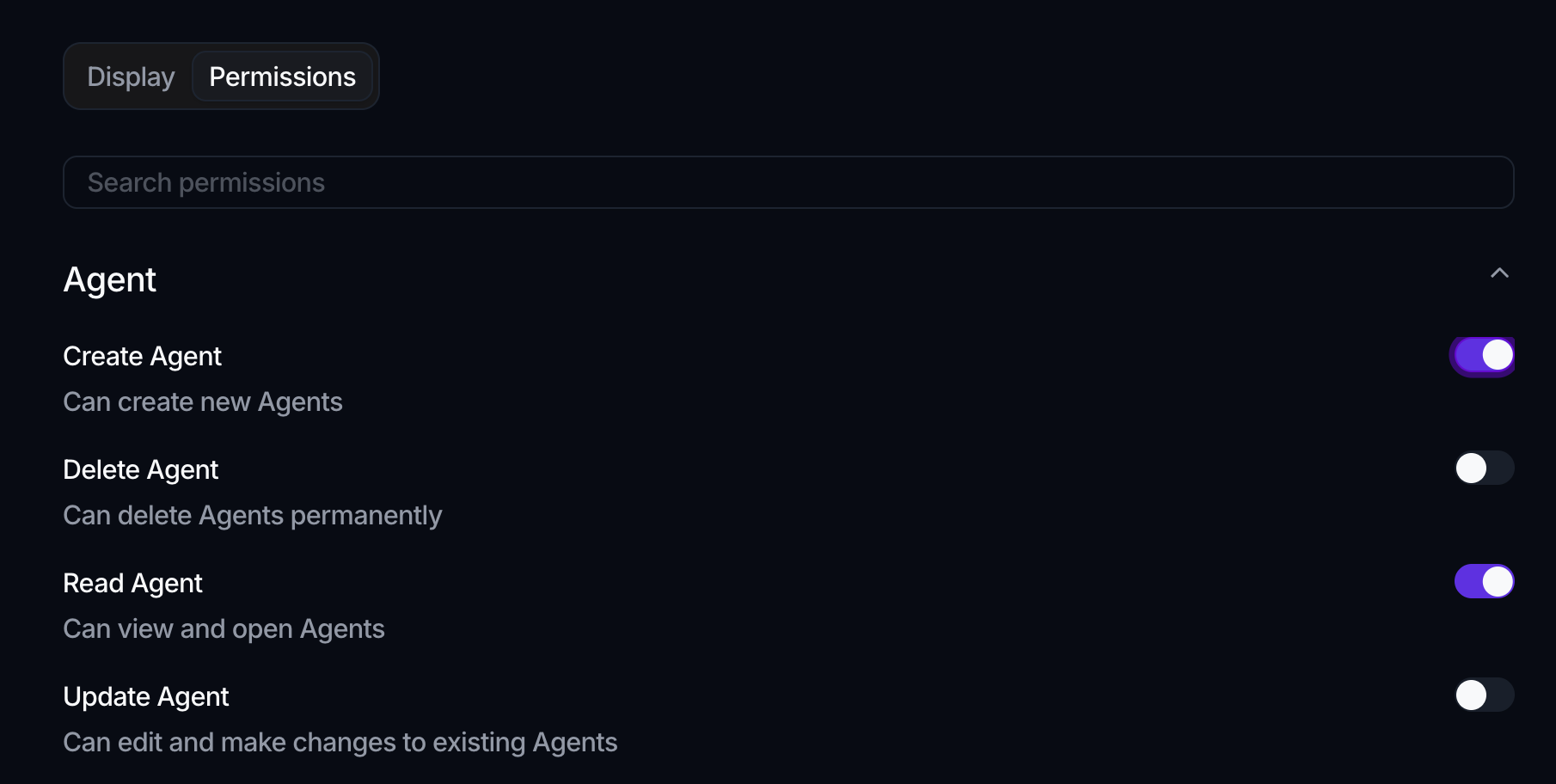
The Permissions tab is where a role's access is actually defined. Permissions are grouped by the resource they apply to (for example a data object, a workflow, or a workspace setting), and each group is a collapsible section you expand to see what's inside. A Search permissions box at the top jumps straight to a capability by name.
Each permission is a single row: a short label naming the capability and the resource it acts on, a one-line description of what it allows, and a toggle on the right. Switch a permission on to grant it to the role, or off to withhold it, one capability at a time. There is no select-all, and the exact list of permissions reflects what your workspace exposes, so it can grow as new capabilities ship. Changes on this tab are saved through the same unsaved-changes toast.
Delete a role
A role's ⋮ menu offers Edit and, where permitted, Delete (with a Delete role confirmation). To rename a role, edit its Name on the Display tab rather than looking for a rename action.
Spark stops you from locking everyone out. If deleting a role, turning off a permission, or unassigning a role would leave the workspace with no one able to manage roles, the change is refused with a message explaining that at least one role must keep the permission to create roles. Keep an administrator role intact and this never gets in your way.
How teams and roles fit together
The two pieces have distinct jobs, and keeping them straight makes access easy to reason about:
- A role answers what can be done: it is a reusable bundle of permissions you define once.
- A team answers who works together and which role they carry: add people to a team, assign the team a role, and every member inherits it.
So you design a handful of roles for the kinds of access you need (say, a broad administrator role and a narrower analyst role), then use teams to place people under the right one. To change what a group can do, reassign its team's role; to move a person's access, move them to a different team.
Where to go next
- Invite people first: Members
- Configure the workspace itself: Workspace settings