Task views
Filter and sort the task list, and save arrangements as shared view tabs.
The Tasks page is a single list you can reorder and filter so you see the work that matters right now, then save those arrangements as views. This page covers shaping the list and keeping views as tabs. To create tasks and change their status, see Create a task.
Shape the list with filter and sort
The Tasks page opens as one table sorted by Status. Three controls at the top left let you focus it:
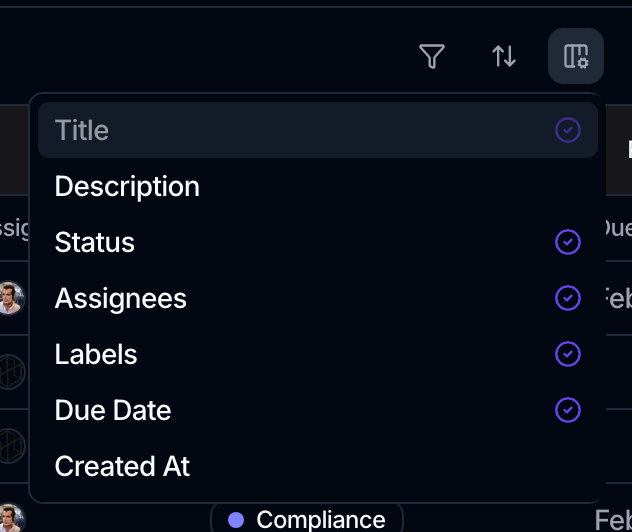
- Display chooses which columns the view shows, and in what order.
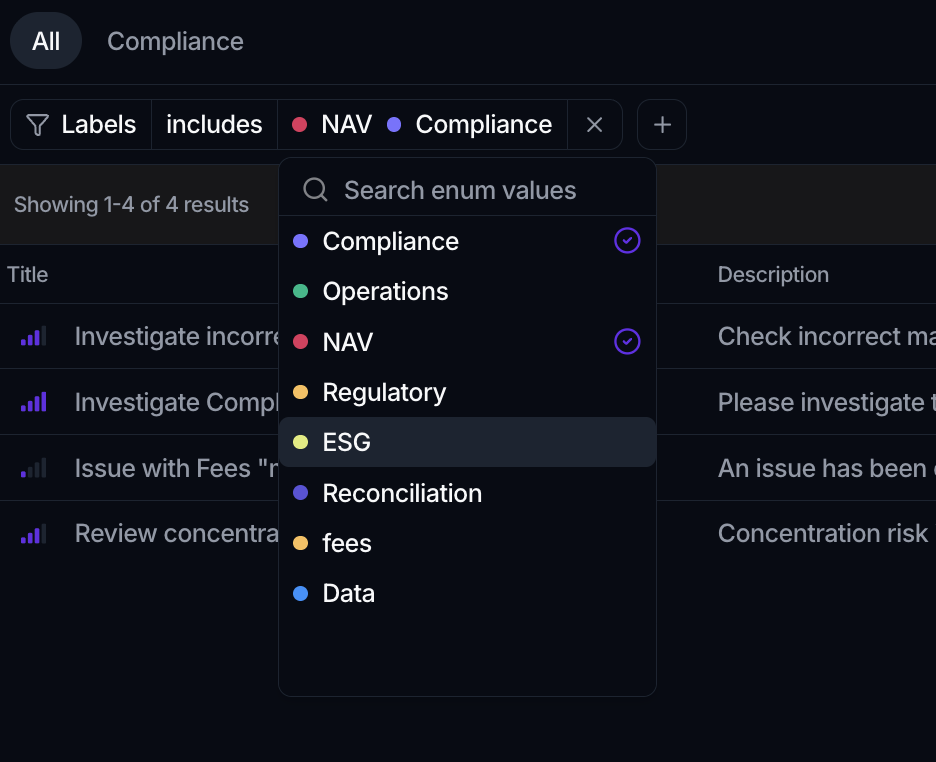
- Filter narrows the list by attribute, for example by assignee, label, or priority. Add one or more conditions.
- Sort orders the list by an attribute and direction. You can also click a column header to sort by it; the arrow in the header reflects the view's saved sort.
Filter, sort and column choices apply to your current session until you save them as a view (below), so you can explore freely without changing what teammates see.
There is no board or kanban layout for tasks. You organize the same list with Filter and Sort rather than by dragging cards between columns.
Choose which columns the list shows
Click Display to manage columns.
- Add or remove a column: open the picker and click an attribute. Clicking one that's already shown removes it.
- Reorder columns: drag a row in the list by its grip handle.
- Title stays pinned as the first column and cannot be removed, since it is the row's identity and the thing you click to open a task.
Any field you have added to Tasks yourself appears in this picker alongside the standard ones, so a view can show exactly the properties your process tracks. See Task fields.
Columns are part of the view, so save the view to keep them.
Save views as tabs
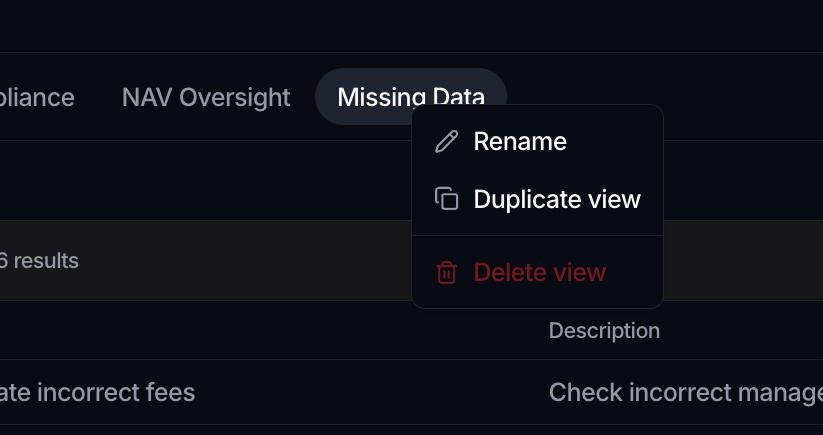
A column, filter and sort arrangement you want to keep becomes a view, shown as a tab across the top of the list. Views are shared with everyone in the workspace.
- The first tab, All, is the default and cannot be renamed or deleted.
- Switch views: click a tab.
- Create a view: click the + at the end of the tab strip and name the new tab, or, after changing a filter or sort, click Save to keep the current arrangement. Saving while on All creates a new view rather than overwriting the default.
- Rename, duplicate, or delete a view: right-click its tab, or double-click to rename. Clear discards unsaved filter or sort changes and returns to the saved view.
Export the list
Click Export to download the tasks as a CSV. It writes every task the view matches, not the page on screen, using the filters and sort you have applied right now, including changes you have not saved yet.
- With rows selected, the export narrows to that selection.
- Values are written the way you read them, so a status or an assignee appears by name rather than as an id.
- Past 10,000 tasks the file stops there and a message tells you how many were left out. Narrow the view with filters and export in batches.

Show or hide archived tasks
Finished or paused work can be archived to keep the active list short:
- Open a task's ⋮ menu on its row.
- Choose Archive. Archived tasks stay safe and can be restored.
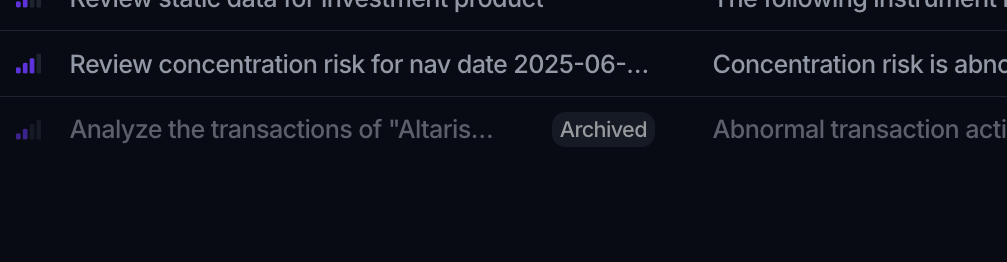
Use the Show archived toggle at the top right to bring archived tasks back into view. Archived rows appear dimmed and read-only. Reopen the ⋮ menu and choose Restore to make one active again, or Delete to remove it permanently.
Where to go next
- Create and assign work: Create a task
- Understand the model: Core concepts: Tasks
- Connect a task to data: Attach a canvas
- Add your own fields: Task fields