Skills
Package reusable guidance an agent can load when it is relevant.
A skill is a named, reusable set of instructions an agent can load when it is relevant, so you do not have to repeat the same guidance in every agent's prompt. Where a tool lets an agent act, a skill shapes how it handles a particular kind of task. Spark ships a catalog of managed skills, and you can write your own.
Open the Skills page
- In the left sidebar, open the Settings tab.
- Under Agent, select Skills.
The page has two panes: the skill catalog on the left and the selected skill's detail on the right. Skills are grouped by Domain, and each group can be collapsed. A skill you created carries a Custom badge; managed skills that ship with Spark have none and are read-only.
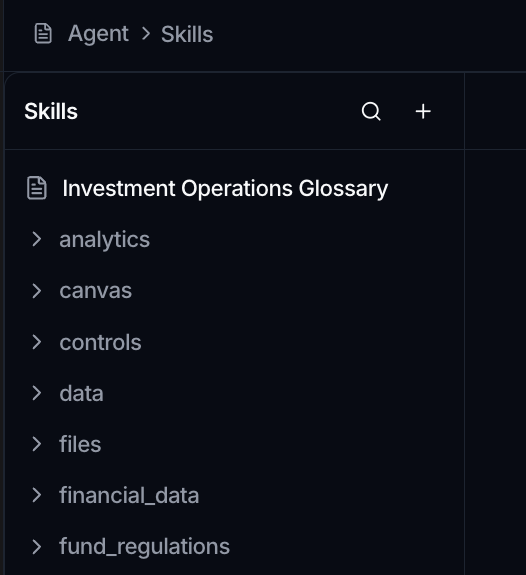
Select a skill to see its detail on the right: its Source (Custom or NGT), its Domain and Version when set, a Description, and the full Instructions. The instructions have a Pretty and a Raw view so you can read the formatted text or the underlying markdown.
Create a custom skill
- On the Skills page, click the + button (New skill) at the top of the catalog.
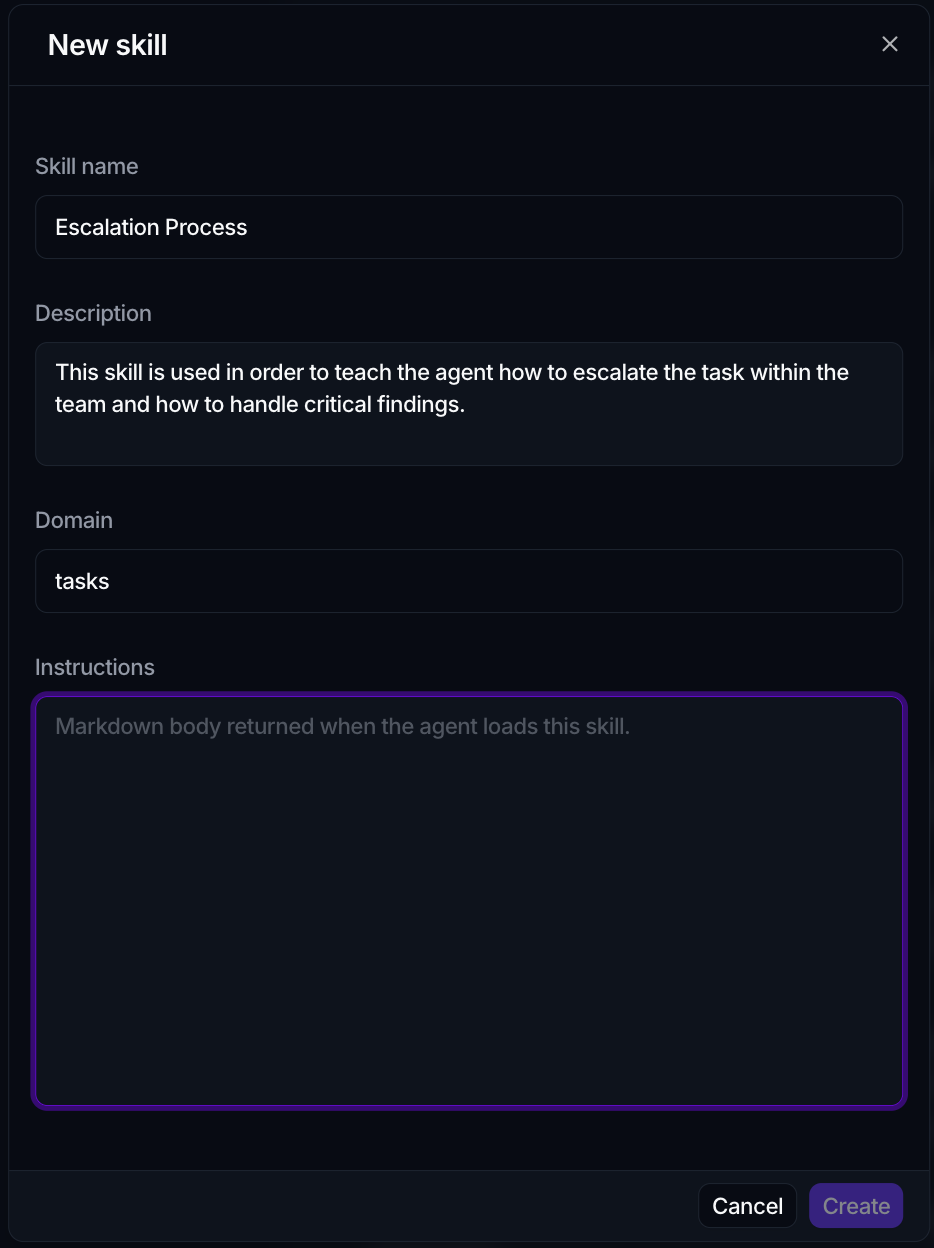
- Fill in the New skill dialog:
| Field | Purpose |
|---|---|
| Skill name | The name shown in the catalog. Required. |
| Description | A one-line summary shown next to the name in the catalog. |
| Domain | An optional label used to group the skill in the list. |
| Instructions | The markdown guidance the agent follows when the skill loads. Required. |
- Click Create. The button stays disabled until both Skill name and Instructions have content.
Edit or delete a skill
Open one of your custom skills, then use the ⋮ menu at the top of the detail pane:
- Edit reopens the same dialog (now titled Edit skill) so you can change any field, then click Save.
- Delete removes the skill for good. The confirmation warns that the skill will be permanently deleted and unattached from any agents using it.
Managed (NGT) skills have no ⋮ menu, because they cannot be edited or deleted.
Attach a skill to an agent
- Open an agent under Settings > Agent > Agents.
- In the Agent details card, find the Skills section and click + (Add skills).
- In the Select skills dialog, tick the skills you want (they are grouped by domain, and you can search and preview each one on the right), then click Apply.
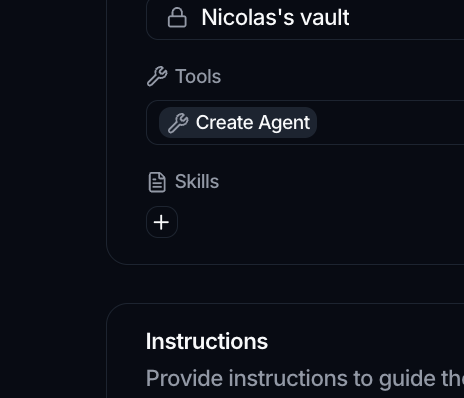
Attached skills appear as chips in the Skills section; use the × on a chip to remove one. Custom and managed skills sit in the same list, so you attach them the same way.
Reach for a skill when the same guidance should apply across several agents or several conversations. Keep one-off instructions in the agent's own Instructions field instead.
How skills show up in a chat
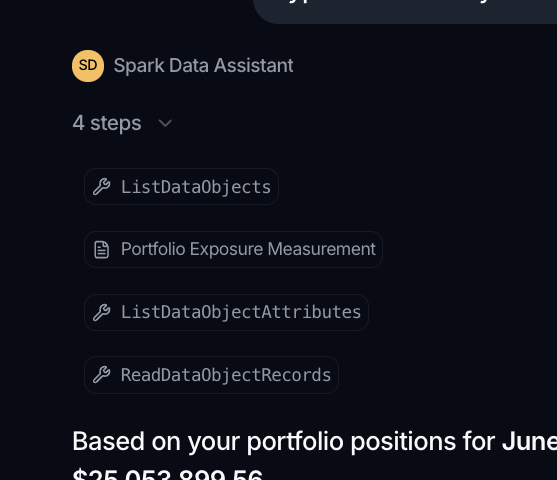
When an agent loads a skill during a conversation, the message trace shows it as a step with the skill's name and a short summary such as 1 skill loaded. That tells you which guidance the agent pulled in before answering.