Scheduling
Run workflows on a schedule.
Scheduling sits on top of a workflow's trigger. For a workflow to run on a timer, its trigger must be the Schedule trigger (see Build a workflow), and the workflow must be Active. A scheduler can only attach to active, schedule-triggered workflows, so set that up first.
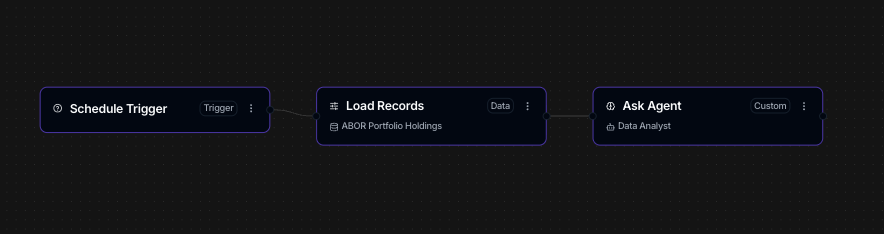
You then create a Scheduler, which pairs a repeating schedule with the workflow to run and, optionally, the context values to run it with. From the Schedulers tab in the Workflow section you click New, give it a name, set the schedule, pick the workflow under Workflow To Run, and save. The steps below walk through each part.
Create a scheduler
- Open Workflow, then the Schedulers tab.
- Click New. The Create Scheduler dialog opens.
- Enter a Name, for example a daily sales report.
- Set the timing under Schedule (see the next section).
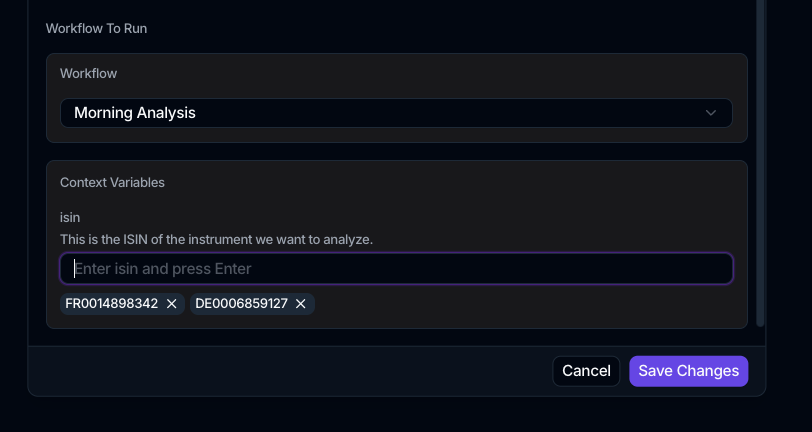
- Under Workflow To Run, use the Workflow dropdown to select the workflow. Only active workflows that have a schedule trigger appear here, so activate the workflow first.
- Click Create Scheduler.
If the workflow defines context variables, a Context Variables section appears so you can supply values before saving.
Setting the schedule
The Schedule control is a visual builder, so you never type raw cron text. It has two parts:
- Repeat on is a row of 7 day toggles, one per day from Sunday to Saturday. Turn on the days you want. At least one day must stay selected.
- Time sets the run time. Choose the hour (00 to 23) and minute (00 to 59). All times are in UTC, shown by the UTC label and the note that all times are in the UTC timezone.
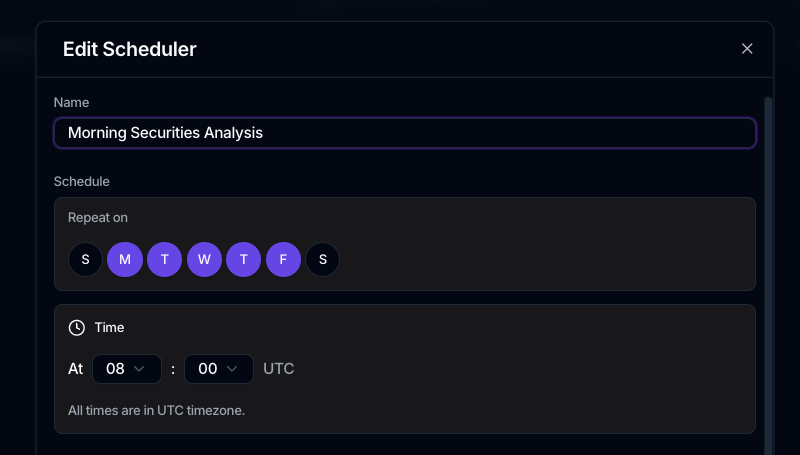
The builder schedules a run at one specific time on the days you pick. It does not offer day-of-month, "every N minutes/hours", or other interval frequencies. For those, use a different trigger or split the work across schedulers.
The Schedule column in the list shows the result in plain language, such as Every day at 09:00 UTC, Every weekday at 09:00 UTC, or Every Monday, Wednesday at 09:00 UTC.
Batch runs from context values
When you create a scheduler, the Context Variables section accepts multiple values per variable. Spark generates one run for each combination of values, and a preview badge shows how many executions will be created before you save. This is how you fan a single schedule out across, for example, several regions or accounts.
Manage schedulers
The Schedulers list shows each scheduler's Name, Schedule, Workflow To Run, Context, Status, Last Run, and Last Execution. The Status badge reads Active or Inactive. Use the row menu to Edit, to Enable or Disable, or to Delete a scheduler.
Where to go next
- See runs a schedule created in Executions.
- Build the workflow a scheduler runs in Build a workflow.
- Trigger from incoming files instead in File-triggered workflows.