File-triggered workflows
Kick off a workflow automatically when a file arrives.
A workflow can start on its own the moment a file lands in your workspace. This connects the Files area to the Workflows area: a file arriving is an event, and a workflow can listen for it. The listener is the File Received trigger, which fires for a file no matter how it arrived, whether by manual upload, over SFTP, or through the workspace's shared email address.
Turn triggering on at upload
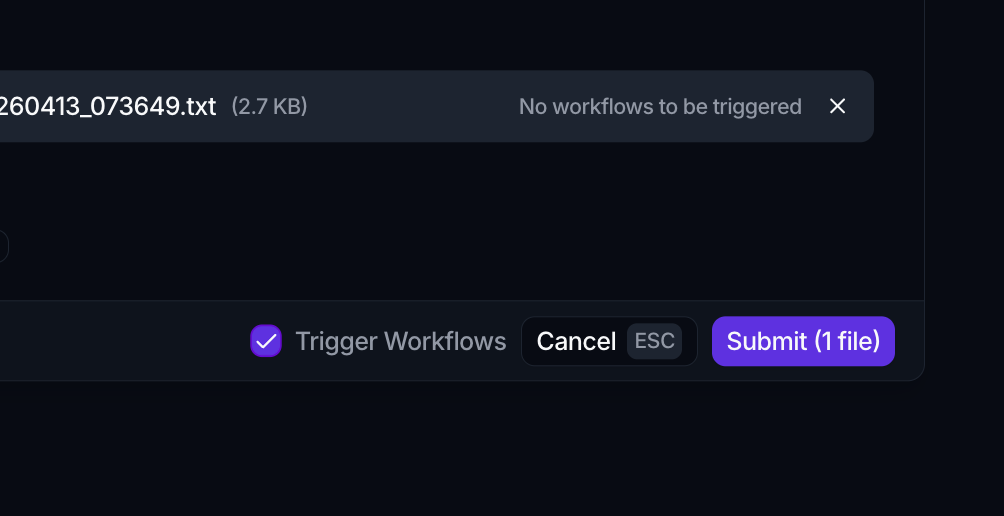
When you upload from the Home Files page, the Upload Files dialog controls whether that upload can start a workflow:
- Click the Import button and add your files.
- Leave the Trigger Workflows checkbox at the bottom of the dialog selected. It is on by default.
- Click Submit.
With the box selected, each uploaded file is offered to any workflow whose File Received trigger matches it. Clear the box when you want to store files quietly without setting automations off.
Match the right files
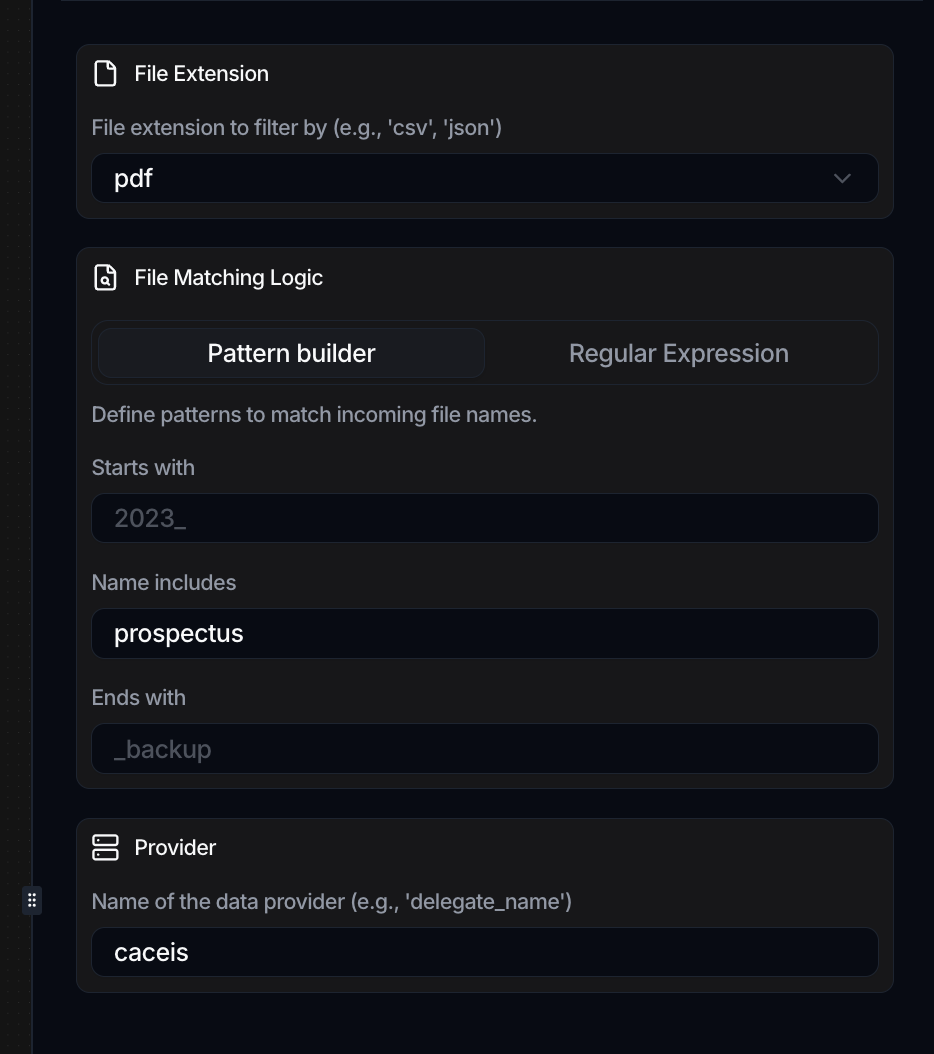
The File Received trigger does not fire for every file. When you build the workflow, you narrow it with conditions so only relevant files start a run. Available conditions include:
| Condition | Matches on |
|---|---|
| File extension | The file type, such as csv or json |
| Name includes | A substring anywhere in the file name |
| Starts with | A prefix on the file name |
| Ends with | A suffix on the file name |
| Matching regex | A regular expression over the file name |
| Provider | The named data provider |
A run starts only when an arriving file satisfies the conditions you set, so a workspace can hold many file-triggered workflows that each react to a different kind of file.
Files cannot be attached to tasks. If you want a file to drive downstream work, route it through a File Received workflow rather than looking for a task attachment.
Build the workflow
The trigger is one action in a larger flow. Add a File Received trigger as the workflow's starting action, set its conditions, then add the steps that parse, transform, or load the file. For the mechanics of assembling actions, see the workflow guides.
Label the file the run received
A File received trigger knows which feed a file arrived on, and the Apply File Label action records that on the file itself, so the file can be grouped, filtered and found later rather than sitting untagged in the library.
- Labels are given by name, not by id, so the same workflow works unchanged in every workspace. A name that does not exist yet is created.
- It adds labels rather than replacing them. One file can match several File received triggers, each running as its own workflow, and replacing would let two of them silently drop each other's labels.