Context variables
Declare named, typed inputs on a workflow and supply their values when it runs.
Context variables are named, typed inputs you declare on a workflow. You define them once, then supply values when the workflow runs, so one workflow can run against different inputs, a region, a date, a data object, without being rebuilt for each. This is the workflow counterpart of a canvas's context variables.
Define a context variable
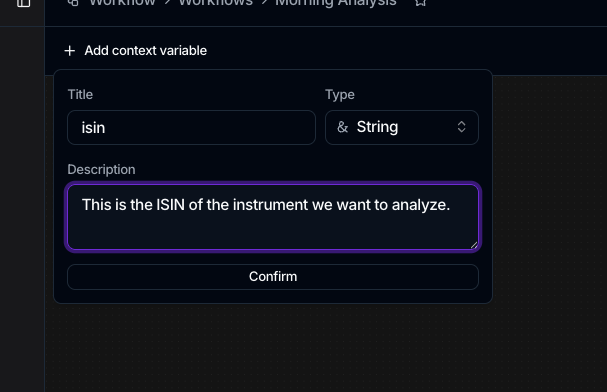
Context variables are edited from the workflow canvas top bar:
- Click Add context variable.
- Enter a Title. Titles are lowercase
snake_case, for examplemy_variable, and must be unique (a duplicate shows This title is already taken). - Choose a Type.
- Optionally add a Description, and for a Data Object type, pick the object it refers to.
- Click Confirm.
The available types are string, number, boolean, date, and data object. Variables appear as chips in the bar; drag them to reorder, or use the × to remove one. File-triggered workflows also carry a built-in File Received variable for the arriving file.
Supply values when it runs
A variable's value is provided at run time, in one of three ways:
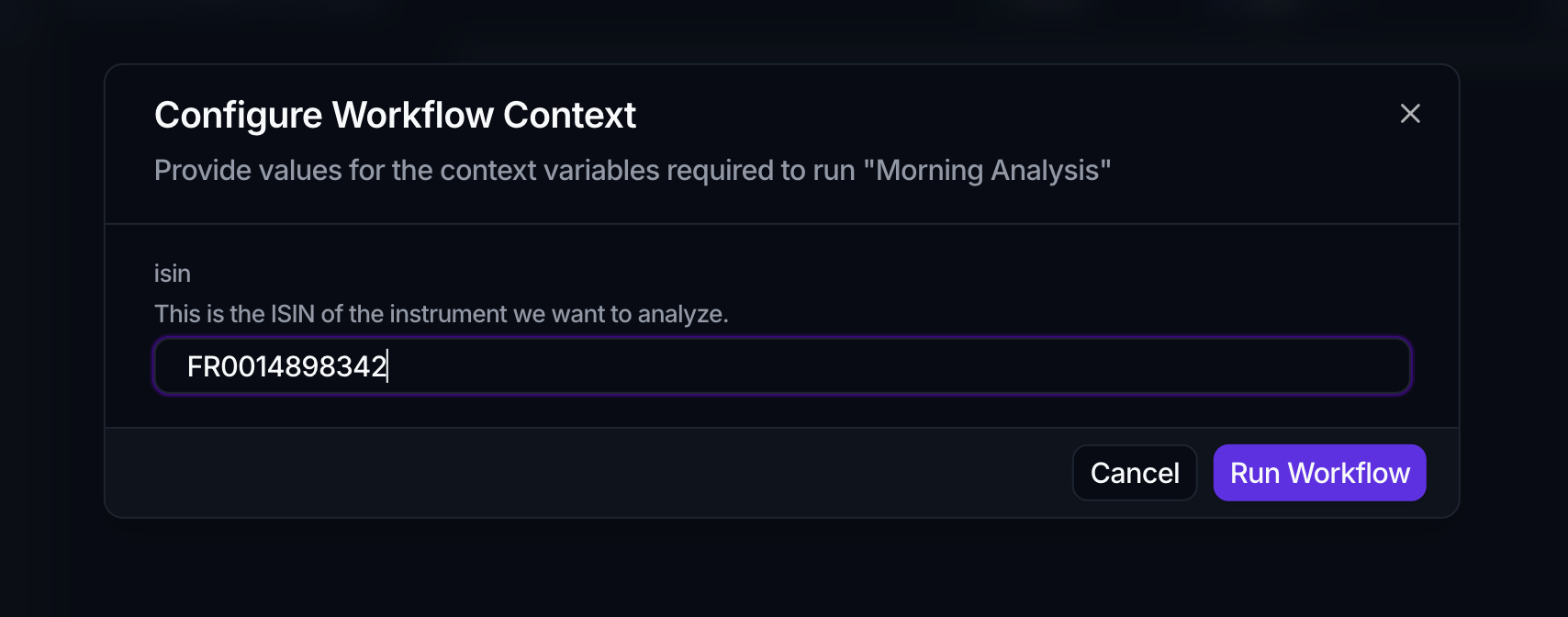
- Running by hand: the Configure Workflow Context dialog prompts for each variable, then you click Run Workflow.
- On a schedule: a scheduler's Context Variables section supplies the values. You can enter several values for a variable to fan the schedule out into a batch of runs, one per combination. See Scheduling.
- From another workflow: an Invoke Workflow action maps the previous action's output columns onto this workflow's variables. See Invocation.
Use a variable in an action
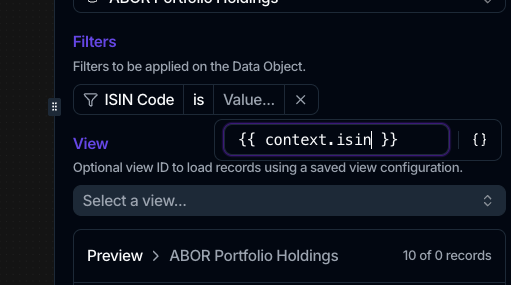
Where an action takes a filter or a value, insert a variable instead of a fixed value: click the braces control (Use context variable) and type the token {{ context.my_variable }}. Spark fills in the value at run time. Because it's a text token, match the variable's title exactly. Context tokens are available in the actions that filter or load data, such as loading records, creating a record or task, and analytics filters.
There's no default-value field on a variable, so every run needs a value (supplied by the run dialog, the scheduler, or the invoking workflow). Keep titles short and descriptive, since you reference them by name in {{ context.… }} tokens.