Navigating the workspace
Find your way around the sidebar tabs, the workspace areas, and the workspace switcher.
Spark's layout is deliberately simple: a left sidebar to move between areas, a main content area for whatever you're working on, and the Agent close at hand. Once you know where each piece lives, everything in these docs is easy to find. This page is your map.
The three sidebar tabs: Home, Chat, Settings
At the very top of the left sidebar, just under your workspace name, is a row of three tabs. They switch the whole sidebar between three modes:
- Home is where you do the work: your Spaces, favorites, and the core workspace areas.
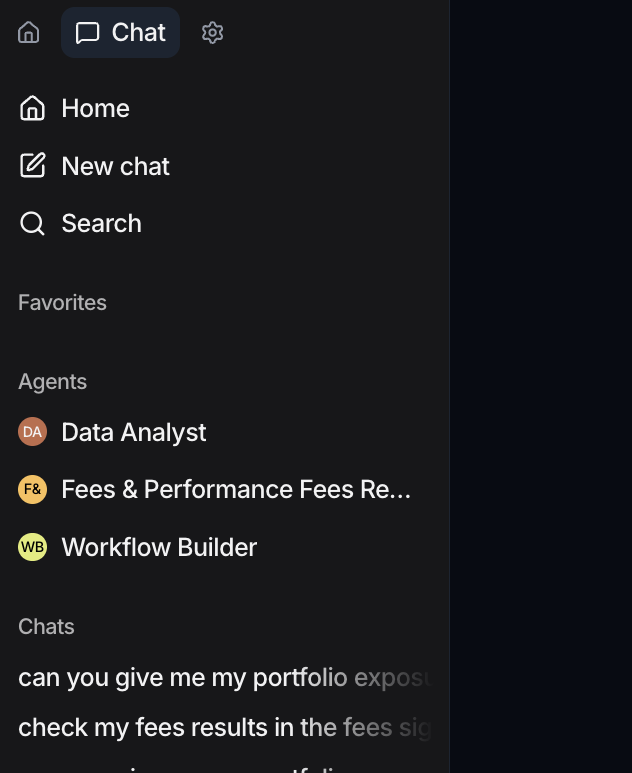
- Chat is the Agent. Switch here to talk to an agent and hand off work.
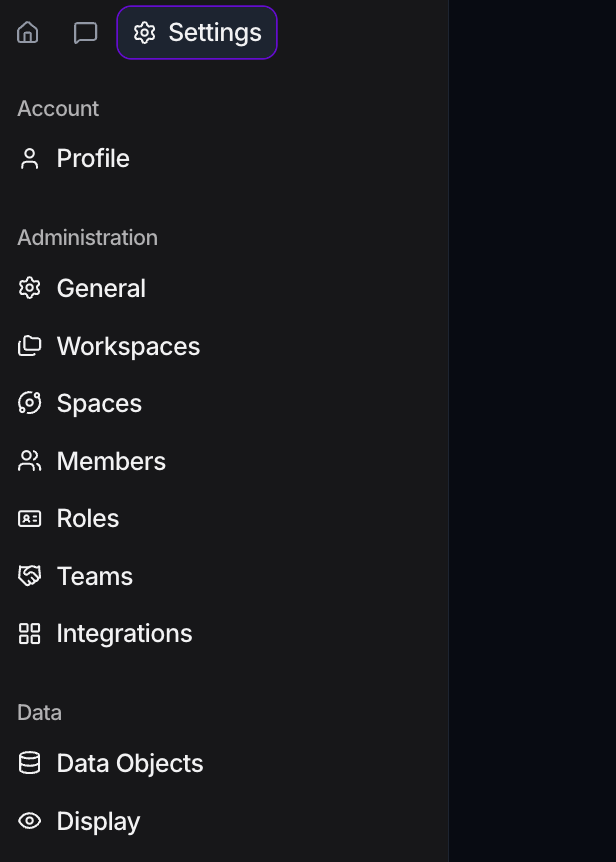
- Settings is configuration: your account, administration, data, agents, and monitoring.
Knowing which tab you're in explains most of the interface. Most of your day happens in Home, you jump to Chat when you want the Agent to act, and you drop into Settings when you need to configure something.
The Home tab
The Home tab is stacked top to bottom:
- At the top, three quick actions: Home (the workspace landing page), New chat (start a conversation with an agent), and Search (opens the command palette, also reachable with ⌘K).
- Favorites: click the ★ star in the top bar to pin the page you're on (a task, canvas, workflow, run, chat, or data view). Pinned pages gather here for one-click access.
- Your Spaces: each Space you belong to appears as its own group, named after the Space.
- The Main group: the core workspace areas.
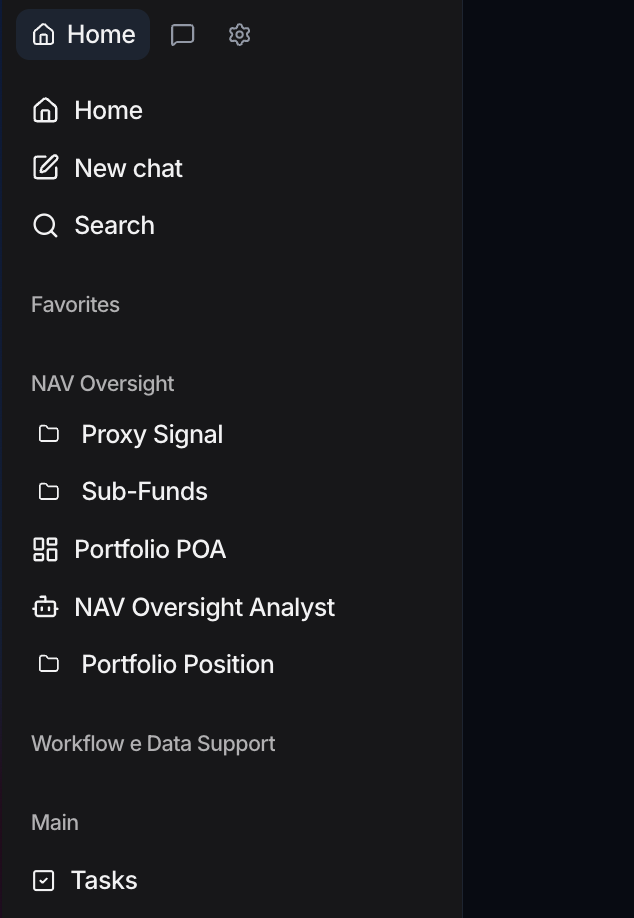
Under Main you'll find:
| Area | What you'll find |
|---|---|
| Tasks | Work items, linked to the data they relate to |
| Data | Your data objects and their records |
| Files | Uploaded documents and ingested inputs |
| Workflow | Automations with triggers, actions, and approvals |
| Canvas | Dashboards built from tables, charts, and KPI widgets |
At the very bottom, a Resources group holds User guide, Support, and Terms.
Not sure where something belongs? Almost everything in Spark is one of a small set of objects: a Space, a data object, a canvas, a task, a file, or a workflow. If you can name the object, the Main group tells you where to find it.
The workspace switcher
The button at the very top of the sidebar shows your workspace name (with a ⌄ chevron). A workspace is your team's tenant: its own data, members, and settings.
Click that button to open a menu, then choose Switch workspace to move to another workspace you belong to. Data never leaks across workspaces, so switching gives you a clean, separate context each time. The same menu is where you'll find Account, Members, and Log out.
Workspaces live inside an organization, the account-level container your identity provider manages. See Workspaces & organizations for how the two relate.
The main content area
Whatever you select in the sidebar opens in the main area to the right. This is where you browse records in a data object, arrange widgets on a canvas, work through tasks, or build a workflow. Toolbars, filters, and saved views for the current object appear here.
The Agent (Chat tab)
Switch to the Chat tab whenever you want to ask a question or hand off a piece of work. Start a New chat and tag an agent with @; it then acts with the context of your workspace. Because it runs inside Spark, you don't need to describe your data to it; it can already see it. See Chat with an agent.
The Settings tab
The Settings tab groups configuration into Account, Administration (workspace settings, members, and Spaces), Features (data objects, the fields on Tasks and Files, and workspace display defaults), Agent (agents, skills, connectors, and vaults), and Monitoring. Several "create" actions in this guide start here, because things like data objects, Spaces, and agents are set up in Settings.
At the bottom of the Settings sidebar, Spark prints the version it is running, with the build reference beside it. Quote that when you report a problem; it tells support exactly which build you were on. See Getting support.
Where to go next
- Ready to do something concrete? Follow the Quick start.
- Want to group your work by use case? See Create a Space.
- Curious how the objects relate? Read the Core concepts.